 Reynand Wu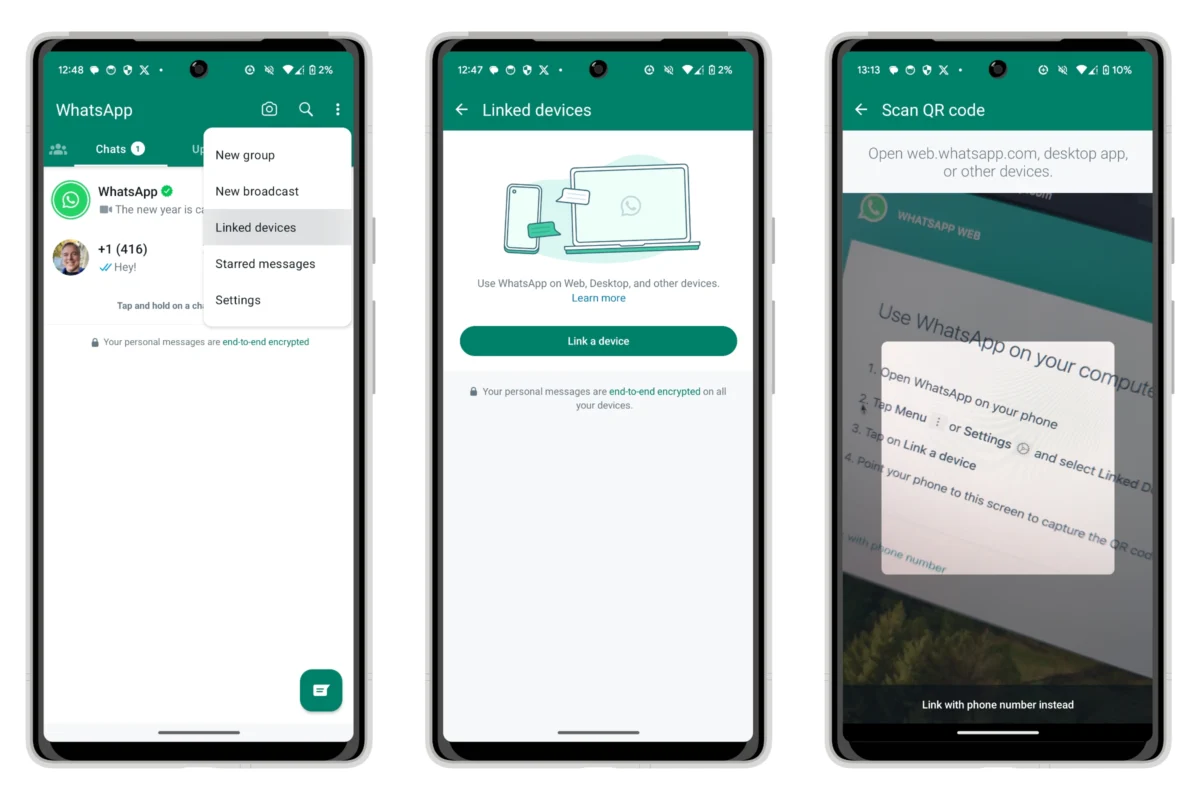
For years, WhatsApp was synonymous with the "phone-first" experience. It was the app you checked on your commute, the one that kept your personal life confined to a pocket-sized device. However, as the boundaries between professional workflows and personal communication continue to blur, the necessity of accessing your chats from a desktop environment has moved from a convenience to a necessity. Enter WhatsApp Web, a robust browser-based portal that has evolved from a simple mirroring tool into a powerful, feature-rich productivity suite.

If you spend the majority of your day tethered to a desk, pecking at a smartphone screen is not only inefficient—it is an ergonomic nightmare. WhatsApp Web offers a seamless transition, providing a expansive view of your conversations, a full physical keyboard for rapid-fire replies, and the ability to manage media-heavy workflows without constant device switching.

The Evolution of the Desktop Experience
Gone are the days when WhatsApp Web was merely a "dumb" mirror of your mobile device. Historically, the service relied heavily on your phone maintaining an active connection to the internet to relay messages. If your phone died, your browser session died with it.

Meta has since overhauled this infrastructure with advanced multi-device support. Now, your browser operates as a standalone endpoint for your account. You can continue to chat, send voice notes, edit messages, and share files even if your smartphone is powered off or disconnected from the network. While the initial security handshake still requires your phone to verify your identity, the subsequent experience is fluid, reliable, and increasingly independent.

Core Capabilities: Beyond Basic Messaging
WhatsApp Web has closed the feature gap significantly compared to its mobile counterpart. Modern users can now utilize the platform to:

- Edit Sent Messages: Correct typos or update information in real-time.
- Voice and Video Messaging: Send short, spontaneous video clips or voice notes directly from your webcam and microphone.
- Privacy Controls: Utilize the "App Lock" feature to ensure that even if you leave your browser open on a shared or public computer, your private conversations remain encrypted behind a password.
- Media Management: Drag-and-drop file sharing allows for the rapid transfer of documents, images, and high-resolution videos, making it an essential tool for remote teams and collaborative projects.
Setting Up: A Step-by-Step Chronology
Because WhatsApp security is rooted in your phone number rather than a traditional username and password, the setup process is a security-focused "handshake" between your hardware.

Phase 1: The QR Code Pairing
This is the most common method for linking your browser to your account.

- Navigate: Open your preferred web browser (Chrome, Safari, Edge, or Firefox) and visit
web.whatsapp.com. - Access Settings: On your phone, open the WhatsApp application.
- iPhone Users: Navigate to the Settings tab (bottom-right) and select Linked Devices.
- Android Users: Tap the three-dot menu icon in the upper-right corner and select Linked Devices.
- Initiate Pairing: Tap Link a Device. You may be prompted for biometric authentication (FaceID, TouchID, or your Android passcode).
- The Scan: Align your phone’s camera with the QR code displayed on your monitor. The browser will instantly refresh, pulling in your chat history and contact list.
Phase 2: The Phone Number Alternative
If you have a broken camera or are unable to scan the code, WhatsApp provides a manual authentication path.

- Select the "Link with phone number" option on the WhatsApp Web splash screen.
- Enter your registered phone number.
- WhatsApp will generate an eight-digit alphanumeric code on your screen.
- On your phone, navigate to Linked Devices > Link a Device, then tap the "Link with phone number instead" button at the bottom of the screen.
- Input the eight-digit code into your phone when prompted. The link will be established securely.
Strategic Implementation: Protecting Your Privacy
One of the most significant concerns for desktop users is the "shoulder surfing" factor. In a bustling office or a public coffee shop, leaving a screen open can expose private data. Meta addressed this with the App Lock feature.

How to Enable App Lock
- Access Settings: Inside WhatsApp Web, click the gear icon located in the bottom-left corner of the sidebar.
- Privacy Configuration: Navigate to the Privacy menu and select App Lock.
- Define Security: Check the box to enable the lock and set a custom password.
- Define Timers: You can select whether the app locks immediately after a period of inactivity (e.g., 1 minute, 15 minutes, or 1 hour).
- Operation: Once enabled, the interface will blur out, requiring your password to reveal the text. This is a local-only security measure—it does not affect your phone’s security, ensuring you have granular control over each specific browser instance.
Supporting Data and User Implications
Recent usage data from Meta suggests that desktop integration has increased the "average message duration" per user by nearly 30%. This implies that when users move to a keyboard-based interface, they engage in more meaningful, longer-form communication rather than short, clipped mobile responses.

Furthermore, the integration of end-to-end encryption (E2EE) remains standard across the web platform. When you link a device, your messages are not "mirrored" to a third-party server; rather, the session keys are managed locally between your browser and the WhatsApp servers, maintaining the same level of security found on your mobile device.

The "Always-On" Implication
The move to multi-device architecture has shifted the burden of battery management. Previously, a phone had to be actively connected to the internet, often draining battery life while acting as a bridge for the desktop client. Now, because the desktop client is a distinct, authorized endpoint, the reliance on the phone’s radio and battery is minimized. This allows users to remain "online" on their desktop even while their phone is in another room or charging.

Troubleshooting and Best Practices
While the system is robust, users occasionally face synchronization delays or connection drops. Here is how to maintain optimal performance:

- Cache Management: If the interface feels sluggish, clear your browser’s cache specifically for
web.whatsapp.com. Bloated cache files are the primary cause of UI lag. - Browser Extensions: Some aggressive ad-blockers or privacy-focused extensions can interfere with the WebSocket connections used by WhatsApp Web. If you cannot send files or see incoming messages, try disabling extensions in a Private/Incognito window to test connectivity.
- Session Management: Always check the Linked Devices menu on your phone periodically. If you see a device you do not recognize, select it and tap Log Out immediately to revoke access.
- Notification Permissions: Ensure your browser is allowed to send desktop notifications. Without these, you will have to manually check the tab, defeating the purpose of the desktop integration.
Future Outlook
As we look toward the future of Meta’s communication ecosystem, we expect to see further integration between WhatsApp Web and other AI-driven tools. With the recent rollout of AI-assisted chat summaries and better media organization, the web version will likely become the primary hub for power users.

For the average professional, the transition to using WhatsApp Web is a high-value, low-effort upgrade. It transforms a simple messaging app into a core component of your digital desktop workflow. By mastering the pairing process, securing your session with App Lock, and leveraging the keyboard-centric interface, you can reclaim your focus and manage your communications with unprecedented speed and efficiency.

Whether you are coordinating a remote team, managing client files, or simply keeping up with family, WhatsApp Web is no longer an optional accessory—it is the definitive way to experience the platform.

 Sagoh
Sagoh
 Nana Wu