
 Azzam Bilal Chamdy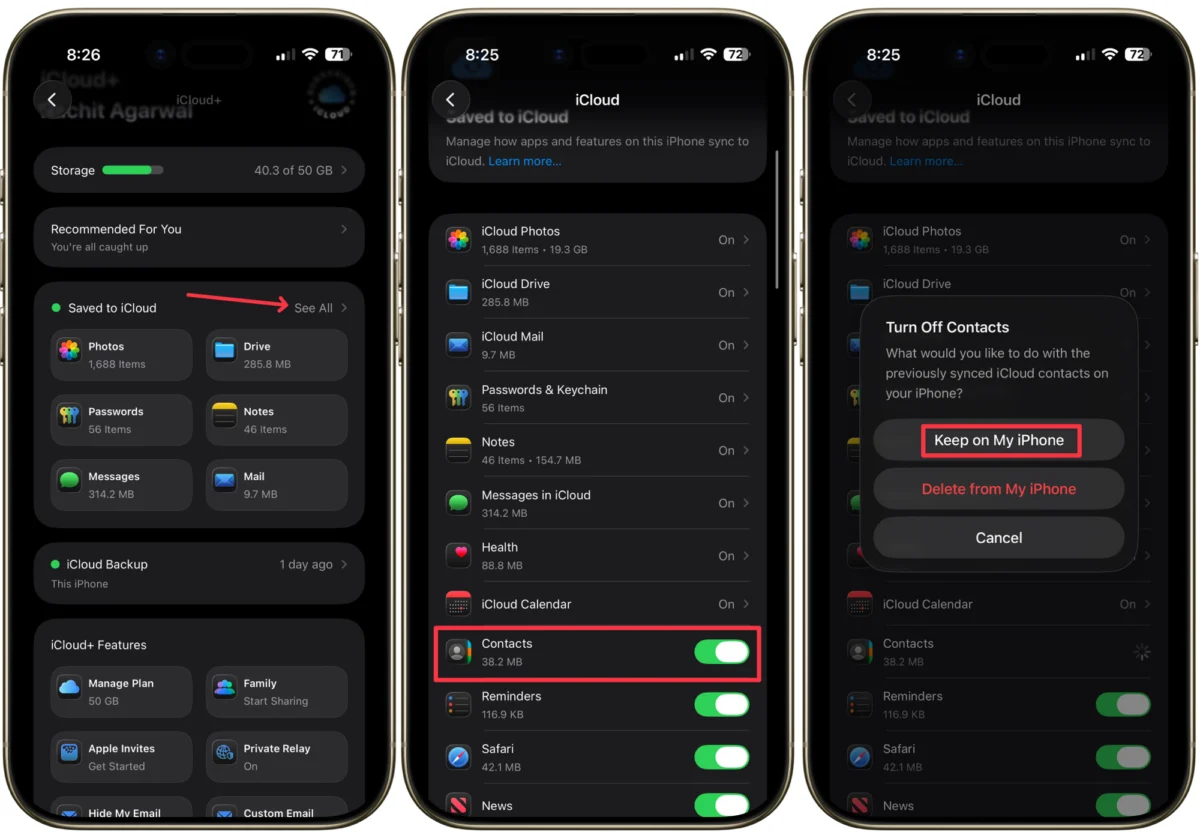
In the digital age, we have collectively offloaded the burden of memory to our devices. Where we once kept bulky address books or committed the digits of our closest friends to memory, we now rely entirely on the digital infrastructure of our smartphones. For most, the thought of memorizing a phone number is an archaic concept, a relic of a pre-smartphone era. Consequently, when your iPhone contacts vanish—whether due to a buggy software update, a botched synchronization, or an accidental deletion—the experience is no longer just a technical inconvenience; it is a profound, anxiety-inducing digital crisis.
The sudden disappearance of your social and professional network can leave you feeling isolated and vulnerable. However, before you begin the tedious process of reaching out to friends and colleagues on social media to beg for their numbers, take a deep breath. In most cases, these contacts have not truly vanished into the ether; they are simply hidden behind a sync error or a temporary cloud disconnection. This guide explores the systematic methods to restore your contact list on the latest iPhone models, ensuring you never lose your lifeline to the world again.

The Anatomy of a Contact Sync Issue
To understand how to fix the problem, it is essential to understand why it happens. Modern iPhones rely heavily on iCloud to serve as the "source of truth" for your data. When you add a contact, it is pushed to Apple’s servers and then mirrored across all your devices.
A "contact disappearance" event usually occurs when the communication link between your device and the server is severed. This can happen during an iOS update—such as the recent rollout of iOS 26.4—or when a user inadvertently toggles a setting while navigating the complex menu structures of the Settings app. Because these contacts are stored in the cloud, they are rarely permanently deleted unless you specifically authorize it. The solutions below are designed to re-establish that broken handshake between your device and your cloud storage.

Method 1: The iCloud Sync Refresh
If your contacts have simply stopped appearing, the issue is often a "stuck" sync process. Refreshing this connection is the digital equivalent of a hard reset for your data.
Step-by-Step Recovery
- Navigate to Settings: Open the Settings app on your iPhone and tap your name at the top of the screen to enter your Apple ID and iCloud dashboard.
- Access iCloud Settings: Tap on "iCloud." You will see a breakdown of how your storage is being utilized. Look for the "Apps Using iCloud" section and tap "See All."
- Toggle the Sync: Locate "Contacts" in the list. Toggle the switch to the "Off" position. A prompt will appear asking what you want to do with your existing synced contacts. Select "Keep on My iPhone." This ensures you have a local copy of whatever data remains on the device.
- Re-enable Sync: Wait approximately 30 seconds to allow the system to clear its cache, then toggle the "Contacts" switch back to "On."
- The Merge Process: When prompted, select "Merge." Your iPhone will now compare the local data with the cloud data and reconcile the two, effectively pulling down any contacts that were previously hidden.
Method 2: Restoring from iCloud.com
If a sync refresh does not bring back your data, it is possible that the contacts were deleted from the server. Apple maintains a sophisticated versioning system for your data, allowing you to "roll back" your contacts to a previous state—essentially a time machine for your address book.

Enabling Web Access
Before you can perform this, you must ensure your device allows web-based access to your data, especially if you have enabled Advanced Data Protection.
- Grant Permission: Go to Settings > [Your Name] > iCloud. Scroll to the very bottom to find the "iCloud.com" section. Ensure the "Allow Data Access" toggle is enabled. Without this, the web interface will be restricted from modifying your account data.
- Access the Web Portal: Open Safari (or any web browser) and navigate to iCloud.com. Sign in with your Apple ID credentials.
- Navigate to Data Recovery: Once logged in, tap the menu (represented by dots or a grid) in the top-right corner. Scroll down to find the "Data Recovery" tool. This is a powerful, often overlooked feature that allows you to restore contacts, calendars, and even files from specific points in time.
- Execute the Restore: You will be presented with a list of "archives"—snapshots of your contacts from different dates. Choose a timestamp that predates the loss of your contacts and tap "Restore."
Apple will push these contacts back to your device, and they should reappear within minutes, depending on the size of your contact list and your internet connection speed.

Implications of Data Security Features
The introduction of Advanced Data Protection (ADP) in recent iOS updates has significantly increased user privacy, but it has also added complexity to data recovery. When ADP is enabled, your data is end-to-end encrypted. This means Apple cannot access your data to help you recover it if you lose your encryption key.
While this protects you from hackers and data breaches, it means you must be diligent about managing your own backups. When using the iCloud.com recovery method, you are essentially asking the server to modify your encrypted data set. This is why enabling "Allow Data Access" in your iPhone settings is a non-negotiable prerequisite; it authorizes the secure web session to communicate with your encrypted database.

Professional Best Practices: The "Insurance" Mindset
Losing your contacts serves as a stark reminder of our reliance on digital systems. To prevent future incidents, consider the following data hygiene practices:
- Diversify Your Backups: While iCloud is convenient, it should not be your only safety net. Consider syncing your contacts with a secondary service like Google Contacts or Outlook. If one service fails, you have a redundant copy.
- Regular Local Backups: Use a computer (Mac or PC) to perform a full device backup periodically. Unlike cloud sync, which updates in real-time and can propagate errors (e.g., if you delete a contact, it deletes everywhere), a local backup captures a static snapshot of your device as it existed on that day.
- Audit Your Accounts: Many users have contacts spread across multiple accounts—iCloud, Gmail, Yahoo, and Exchange. Go to Settings > Contacts > Accounts to ensure that "Contacts" is enabled for all the services where you keep your important information. Often, people think their contacts are gone, but they have simply accidentally disabled the account sync for a secondary email provider.
Official Responses and Data Integrity
Apple’s official stance on data loss remains consistent: the company emphasizes that iCloud is a syncing service, not a long-term archival service. Users often mistake a sync service for a backup service. If you delete a contact on your phone, it is deleted from the cloud. This is why the "Data Recovery" feature on iCloud.com is so critical—it is the only way to reverse a "sync-deletion" event.

In recent updates, Apple has made the interface for these recovery options more accessible, moving them from obscure deep-menu items to more prominent locations in the iCloud dashboard. This reflects a broader trend of Apple acknowledging the "digital anxiety" caused by the complexity of modern cloud ecosystems.
Conclusion: Turning Chaos into Control
The experience of losing your contacts is a jarring wake-up call, but it is rarely a permanent loss. By utilizing the sync refresh method or the more robust archive-restore tool on iCloud.com, the vast majority of users can recover their data within minutes.

The true takeaway is not just about the technical steps to recover your information, but about cultivating a more resilient approach to digital life. We live in an era where our personal and professional lives are inextricably linked to our devices. Treating your data with the same care you would treat a physical wallet—by maintaining backups, understanding your security settings, and performing regular maintenance—is the only way to navigate the digital age with confidence. Do not wait for a crisis to learn these settings; take the time today to ensure your iCloud settings are optimized, your sync is active, and your digital lifeline is secure. Your future self will thank you.


 Laily UPN
 Sagoh
Sagoh