Dwi Wanna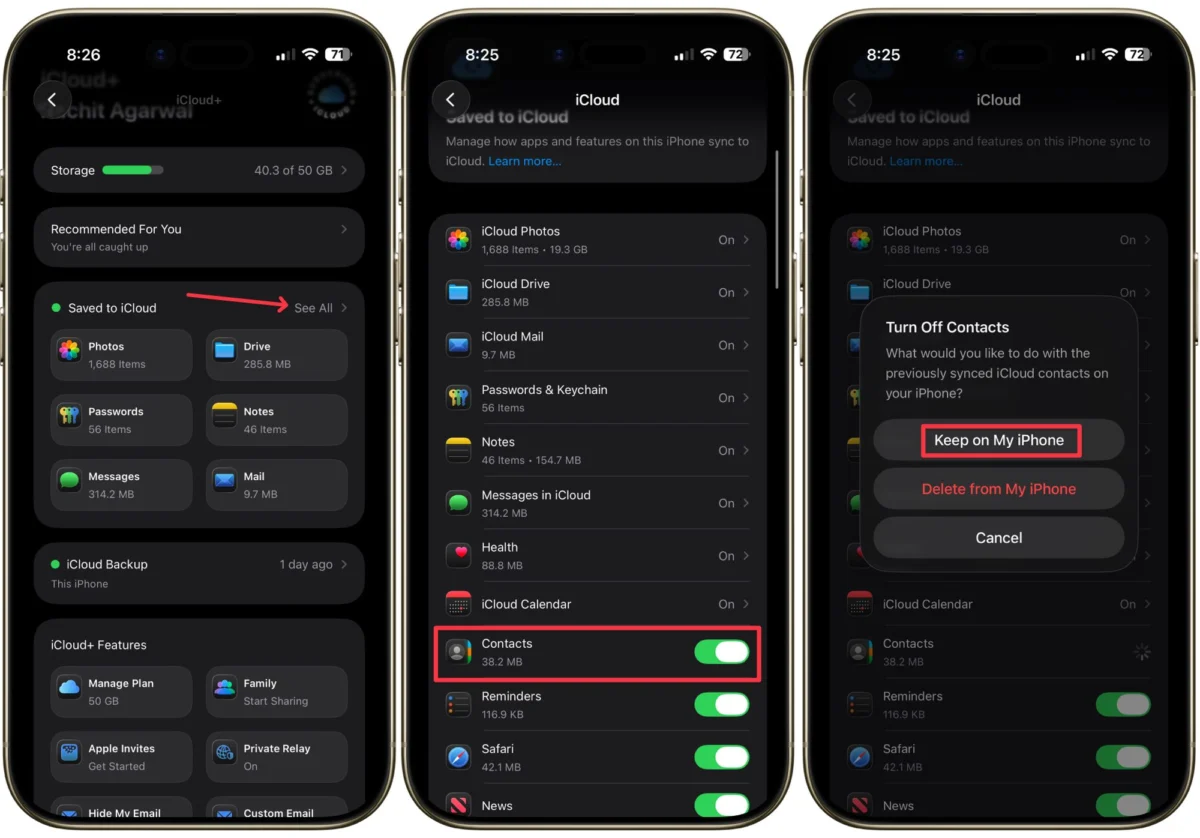
In the modern era, the physical address book has become a relic of the past. We have outsourced our memory to the cloud, offloading the phone numbers of friends, family, and professional associates to the digital ether. Consequently, most of us would struggle to recall even three phone numbers from memory. This transition has made our smartphones the primary repositories of our social and professional identities. When those contacts vanish—whether due to a corrupted iOS update, a synchronization glitch, or an accidental deletion—it feels less like a minor technical hiccup and more like a total systemic collapse.
While the loss of data is undoubtedly stressful, the good news is that Apple’s ecosystem is designed with redundancies. If you find yourself staring at an empty contact list, do not panic. Before you begin the arduous process of texting acquaintances to ask for their digits, you can employ several effective strategies to restore your data. These methods apply to all current iPhone models and are effective even if you are running the latest iterations of iOS.

The Anatomy of the Problem: Why Contacts Disappear
Understanding why contacts vanish is the first step toward effective mitigation. Generally, contact loss stems from three distinct categories: synchronization errors, human error, or software instability.
Synchronization issues often occur when the connection between your device and the iCloud server is interrupted. If your phone attempts to sync during a period of unstable internet connectivity, it may inadvertently hide or "misplace" your contact list. Human error, while perhaps the most embarrassing, is the most common; we have all accidentally hit the "delete" button while trying to clean up our lists. Finally, software updates—particularly major OS releases—can sometimes reconfigure permissions or reset default account settings, causing the phone to point to an empty contact source.

Method 1: The iCloud Sync Reset (The "Soft" Fix)
If your contacts have disappeared due to a temporary handshake failure between your iPhone and Apple’s servers, a "refresh" of the synchronization toggle is often the most effective remedy. This process essentially forces the iPhone to re-download the contact database from the cloud.
Step-by-Step Recovery
- Accessing Settings: Open the Settings app on your iPhone. Tap your name at the top of the menu to enter the Apple ID and iCloud management dashboard.
- Toggling Contacts: Navigate to the iCloud section. Tap See All to view every app syncing to the cloud. Find the Contacts toggle and switch it to the "Off" position.
- Preserving Local Data: When prompted with a popup asking what to do with your existing iCloud contacts, select Keep on My iPhone. This ensures that you don’t inadvertently wipe any remaining data before the refresh.
- Re-syncing: Wait approximately 30 seconds to a minute, then toggle the Contacts switch back to the "On" position. Choose Merge when the phone asks if you want to combine existing contacts with those in iCloud. Your contacts should begin to repopulate on your device shortly thereafter.
Method 2: Advanced Recovery via iCloud.com
If the simple sync toggle does not restore your missing data, you may need to reach into the deeper archives stored on Apple’s servers. iCloud maintains a hidden "archive" of your contacts, which acts as a safety net for accidental deletions.

Enabling Web Access
With the advent of increased security measures—such as Apple’s Advanced Data Protection and the security protocols introduced in iOS 26.4—Apple has restricted how third-party browsers access your data. To perform a deep-level restore, you must first grant permission for web access.
- Navigate to Settings > [Your Name] > iCloud.
- Scroll to the very bottom of the page and tap on iCloud.com.
- Toggle the Allow Data Access switch to "On." This is a critical step; without it, the browser-based restoration tools will be unable to communicate with your secure cloud storage.
Restoring from the Archive
Once you have granted permission, follow these steps:

- Open Safari on your iPhone and navigate to iCloud.com.
- Sign in using your Apple ID and password. If you have Two-Factor Authentication enabled, ensure you have your secondary device handy to approve the login.
- Once the main dashboard loads, tap the menu dots (often represented by a grid icon) in the top-right corner.
- Scroll to the Data Recovery section. This is a specialized toolset for restoring deleted items.
- Select Restore Contacts. You will be presented with a list of archive points—essentially "snapshots" of your address book from previous days or weeks.
- Choose the date that precedes your loss of data and tap the Restore button. iCloud will then replace your current, corrupted contact list with the stable, backed-up version from that date.
Implications of Data Loss and Preventive Measures
The "digital crisis" of losing your contacts serves as a stark reminder of our dependence on cloud infrastructure. While Apple provides the tools to recover from disaster, the real responsibility lies with the user to maintain a robust backup strategy.
Implications of Advanced Security
As Apple continues to push for end-to-end encryption through features like Advanced Data Protection, the burden of data recovery shifts increasingly onto the user. When Advanced Data Protection is enabled, Apple does not hold the encryption keys for your data; if you lose access to your account, even Apple cannot help you recover it. This makes the "offline" backup—such as a manual export of your contacts—more important than ever.

Proactive Safeguarding: Best Practices
- Regular Backups: Ensure your iPhone is set to perform an automatic iCloud backup nightly. Connect your phone to power and Wi-Fi before going to sleep to ensure the backup completes.
- Multiple Sources: Do not rely solely on iCloud. Consider syncing your contacts with an secondary account, such as a Google or Outlook account. If one sync service fails, you have an immediate, independent alternative.
- Manual Exports: For professional users, consider exporting your contact list as a vCard (.vcf file) once a quarter. Storing this file in a separate, encrypted drive or a different cloud service provides a "last resort" fail-safe.
- Verification: Periodically check your "Groups" in the Contacts app. Sometimes, contacts are not deleted but simply "hidden" because they are part of a specific group that has been unchecked in your display settings.
Conclusion: The Digital Insurance Policy
The loss of contact data is a modern-day inconvenience that can quickly escalate into a genuine disruption of both personal and professional life. However, by understanding the mechanics of iCloud synchronization and the availability of deep-archive restoration tools, users can navigate these crises with confidence.
The underlying lesson is that technology is only as reliable as our maintenance of it. Think of these recovery methods as an insurance policy. You hope you never need to use them, but knowing how to access them—and, more importantly, keeping your data synced and backed up—ensures that when the unexpected happens, you aren’t left in the dark. In the digital age, a little bit of proactive housekeeping is the most valuable tool in your arsenal. By keeping your software updated, your sync settings active, and your backups current, you ensure that your digital connections remain exactly where they belong: right at your fingertips.


 Lina Hope
 Jia Lissa