 Laily UPN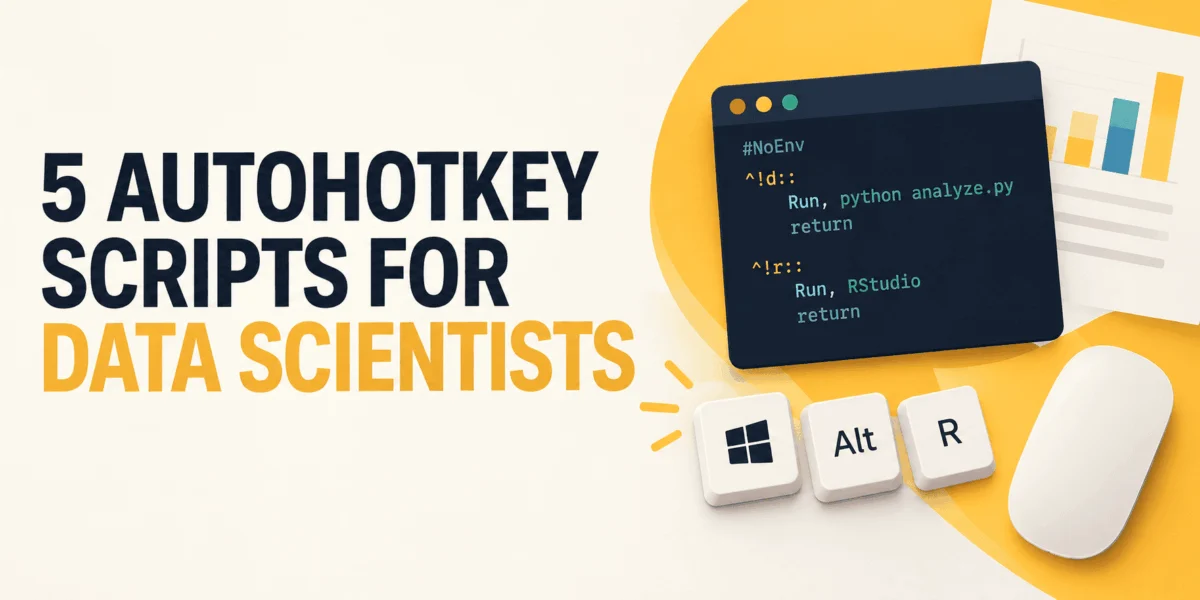
For many data scientists working in Windows-based environments, the actual "work"—the statistical modeling, the data cleaning, and the visualization—is often preceded by a ritualistic gauntlet of administrative friction. Before a single line of code is executed, the professional must launch the project folder, open the IDE, initialize the terminal, locate documentation tabs, format file paths, and manually arrange windows to match the previous day’s workspace.
These tasks are not analysis. They are the cognitive "tax" paid to the operating system, consuming valuable focus and time. While these micro-tasks seem insignificant in isolation, their cumulative effect on developer velocity is substantial. This article explores how to reclaim that time using AutoHotkey (AHK), a powerful open-source scripting language designed specifically to bridge the gap between human intent and Windows desktop execution.
The Case for Desktop Automation: Establishing Boundaries
AutoHotkey is a free, open-source utility that enables users to map virtually any sequence of keystrokes or mouse clicks to a single hotkey. While the macOS ecosystem relies on tools like Hammerspoon or Keyboard Maestro, Windows users have a unique, highly mature ecosystem in AutoHotkey.
Understanding the "Lane" of Automation
The primary rule of desktop automation is simple: do not blur the lines between environment configuration and data processing.
AutoHotkey should be viewed as "desktop glue." It is designed to handle the orchestration of your digital workspace—launching applications, reshaping text on the clipboard, or repositioning windows. It is not a data pipeline tool. Any transformation that is critical to the integrity of an analysis—such as data cleaning, feature engineering, or SQL query construction—must reside within your Python, R, or SQL scripts. These processes belong under version control (Git), where they can be tested, audited, and reproduced.
Using AHK to feed data into a production pipeline is a liability; it is an opaque, "hidden" process that lacks the transparency required for professional-grade data science. Keep your AHK scripts lean, visible, and dedicated solely to the ergonomics of your workstation.
1. The Workspace Launcher: Orchestrating the Environment
The cognitive load of "starting up" can be reduced to a single key combination. Instead of manually navigating through folders and opening multiple applications, a single AHK script can serve as a project bootstrap.
Implementation Strategy
By defining a project variable at the top of your script, you can bundle multiple Run commands. This ensures that every time you begin a session, your environment is consistent.
#Requires AutoHotkey v2.0
#SingleInstance Force

; Define the project root directory
project := "C:workdata-science-project"

; Ctrl+Alt+W to launch the workspace
^!w::
    Run 'explorer.exe "' project '"'
    Run 'code "' project '"'
    Run 'wt -d "' project '"'             ; Windows Terminal
    Run "http://localhost:8888/lab"       ; JupyterLab server
Implications: By centralizing your launch sequence, you eliminate the "context switching" that occurs while hunting for files. Furthermore, this approach encourages modularity; switching to a new project requires changing only one variable at the top of the script.
2. Clipboard-to-List Converters: The Data Scientist’s Best Friend
Data scientists frequently deal with lists of IDs, SKU codes, or category labels copied from spreadsheets or web-based ticketing systems. Manually wrapping these in Python brackets or SQL IN clauses is tedious and error-prone.
The Automation Logic
The A_Clipboard feature in AHK v2 allows the script to read and manipulate the contents of your clipboard directly. The following script transforms a column of copied data into a formatted list, ready for injection into your code.
^!l::PasteList("[", "]")                  ; Ctrl+Alt+L for Python list
^!+l::PasteList("(", ")")                 ; Ctrl+Shift+Alt+L for SQL IN

PasteList(open, close)
    items := []
    for line in StrSplit(A_Clipboard, "`n", "`r ")
        if line != ""
            items.Push("'" line "'")
    out := open
    for i, item in items
        out .= (i > 1 ? ", " : "") item
    A_Clipboard := out close
    SendText A_Clipboard
Why this matters: This script eliminates the reliance on insecure third-party "web formatters," which often require pasting sensitive customer data into external, untrusted environments. By processing this locally, you maintain data privacy and drastically increase speed.
3. Hotstrings: Expanding Analysis Boilerplate
Hotstrings are the ultimate tool for reducing repetitive typing. In data science, you find yourself repeatedly typing import statements, EDA (Exploratory Data Analysis) checklists, and boilerplate documentation.
Best Practices for Hotstrings
By using a specific prefix—such as ;;—you ensure that your abbreviations do not trigger accidentally during normal typing.
:*:;;imp::

    SendText "import pandas as pd`nimport numpy as np`nimport matplotlib.pyplot as plt`n"


:*:;;eda::

    SendText "## EDA checklist`n- shape and dtypes`n- missing values`n- target balance`n"
Supporting Data: The use of SendText is critical here. Unlike the standard Send command, which interprets characters like ^ or ! as modifier keys (Ctrl/Alt), SendText transmits characters literally. This prevents your code blocks from being mangled by the interpreter.
4. Path Formatting: Bridging Windows and Python
Windows file paths—specifically those containing backslashes ()—are the bane of Python’s string handling. Copying a path from Windows Explorer and pasting it into a notebook often results in errors because Python interprets n or t as control characters.
Streamlining Path Entry
Two hotkeys can handle the transformation, either by converting the path into a Python "raw string" or by swapping backslashes for forward slashes, which Python’s pathlib library handles natively.
^!p::                                    ; Ctrl+Alt+P for raw string
    A_Clipboard := "r'" Trim(A_Clipboard, '"') "'"
    SendText A_Clipboard


^!+p::                                   ; Ctrl+Shift+Alt+P for forward slashes
    A_Clipboard := StrReplace(Trim(A_Clipboard, '"'), "", "/")
    SendText A_Clipboard
Implications: This script removes the "frustration factor" of path debugging. It allows you to move seamlessly from the Windows file system to your Python environment without manually correcting syntax.
5. Window Management: Snapping the Workflow into Place
Data science requires a multi-window setup: code on one side, terminal below it, documentation or visualization browser on the other. Manually resizing and dragging these windows is a non-productive task that happens multiple times a day.
The WinMove Function
By utilizing WinMove and WinActivate, you can programmatically force your applications into a pre-defined grid.
^!1::
    Place("ahk_exe WindowsTerminal.exe", 0, 720, 1280, 720)
    Place("JupyterLab", 0, 0, 1280, 720)
    Place("ahk_exe Code.exe", 1280, 0, 1280, 1440)


Place(title, x, y, w, h)
    if WinExist(title)
        WinActivate
        WinMove x, y, w, h
Official Considerations: When implementing window management, be aware that high-DPI monitor settings and scaling can influence coordinate accuracy. This script is most effective for static, single-monitor or consistent multi-monitor setups.
Implications and Professional Standards
The adoption of AutoHotkey in a data science environment represents a shift toward ergonomic programming. By outsourcing the "desktop friction" to a script, the data scientist can focus their limited cognitive resources on the logic of the analysis rather than the logistics of the environment.
Maintaining the Ecosystem
While these scripts improve efficiency, they must be maintained with the same professional rigor as any other code:
- Version Control: Keep your
.ahkfiles in a repository. This makes them portable and ensures that your environment configuration is backed up. - Security: Never hardcode API keys, database credentials, or sensitive tokens into these scripts. Because these files are often synced to cloud storage or shared across machines, they should only contain "glue" logic—never secrets.
- Documentation: Add comments to your scripts. A script that makes sense today may be confusing in six months. Explain why a specific transformation was chosen (e.g., "Use forward slashes for compatibility with pathlib").
Final Thoughts: When to Move Beyond AHK
AutoHotkey is a powerful servant but a poor master. The moment a script evolves from "formatting a list" to "processing data," it is time to move that logic into your primary project codebase. Data science is built on the foundation of reproducibility; by keeping your desktop automation scripts separate from your data processing logic, you achieve the perfect balance of efficiency and scientific integrity.
Start small. Implement the script that addresses your most frequent annoyance, and allow your desktop environment to evolve as your workflow matures. By mastering your tools, you allow yourself the freedom to focus on what truly matters: the data.

 Sagoh
Sagoh