Neng Nana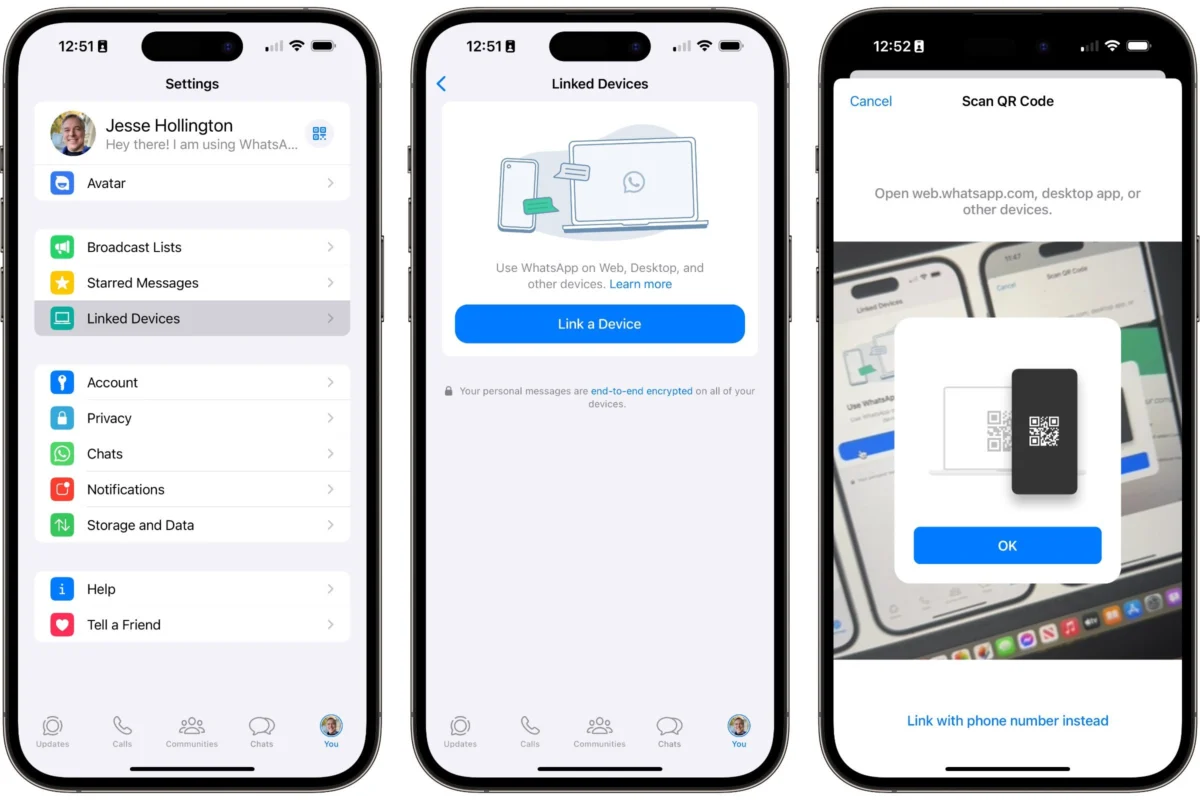
In the modern digital landscape, the line between personal and professional communication is increasingly blurred. While WhatsApp remains the world’s most dominant mobile-first messaging platform, Meta has significantly expanded the service’s ecosystem to cater to the “desk-bound” user. For millions of professionals, students, and casual users, the transition from a cramped smartphone screen to a full-sized desktop keyboard is not just a luxury—it is a necessity for maintaining efficiency.
WhatsApp Web serves as a seamless bridge, allowing you to synchronize your mobile experience with your desktop or laptop. By leveraging this tool, users can manage complex conversations, share heavy media files, and maintain constant connectivity without the constant distraction of checking a mobile device.

Main Facts: What is WhatsApp Web?
WhatsApp Web is a browser-based extension of your mobile WhatsApp account. Unlike standalone messaging applications that require a separate username and password, WhatsApp Web mirrors your phone’s activity in real time. Because your WhatsApp account is intrinsically linked to your phone number, the web version acts as a "slave" device, pulling data from your smartphone to provide a mirrored experience on your computer.
The Evolution of Multi-Device Support
Historically, WhatsApp Web was tethered to the state of your smartphone. If your phone died or lost its cellular connection, the web interface would instantly disconnect. However, Meta has revolutionized this architecture through its "Multi-Device" capability. Today, you can use WhatsApp on your desktop even if your phone is powered off, left in another room, or has no active internet connection. This has turned WhatsApp Web from a secondary utility into a primary communication workstation.

Chronology: Setting Up Your Workspace
The barrier to entry for WhatsApp Web is intentionally low, designed for rapid deployment. Whether you are operating on macOS, Windows, or Linux, the process remains consistent across all major web browsers, including Google Chrome, Mozilla Firefox, Safari, and Microsoft Edge.
Phase 1: The Initial Authentication
Because security is paramount when dealing with end-to-end encrypted messaging, WhatsApp avoids traditional login credentials. Instead, it utilizes an authentication handshake between your mobile hardware and your desktop browser.
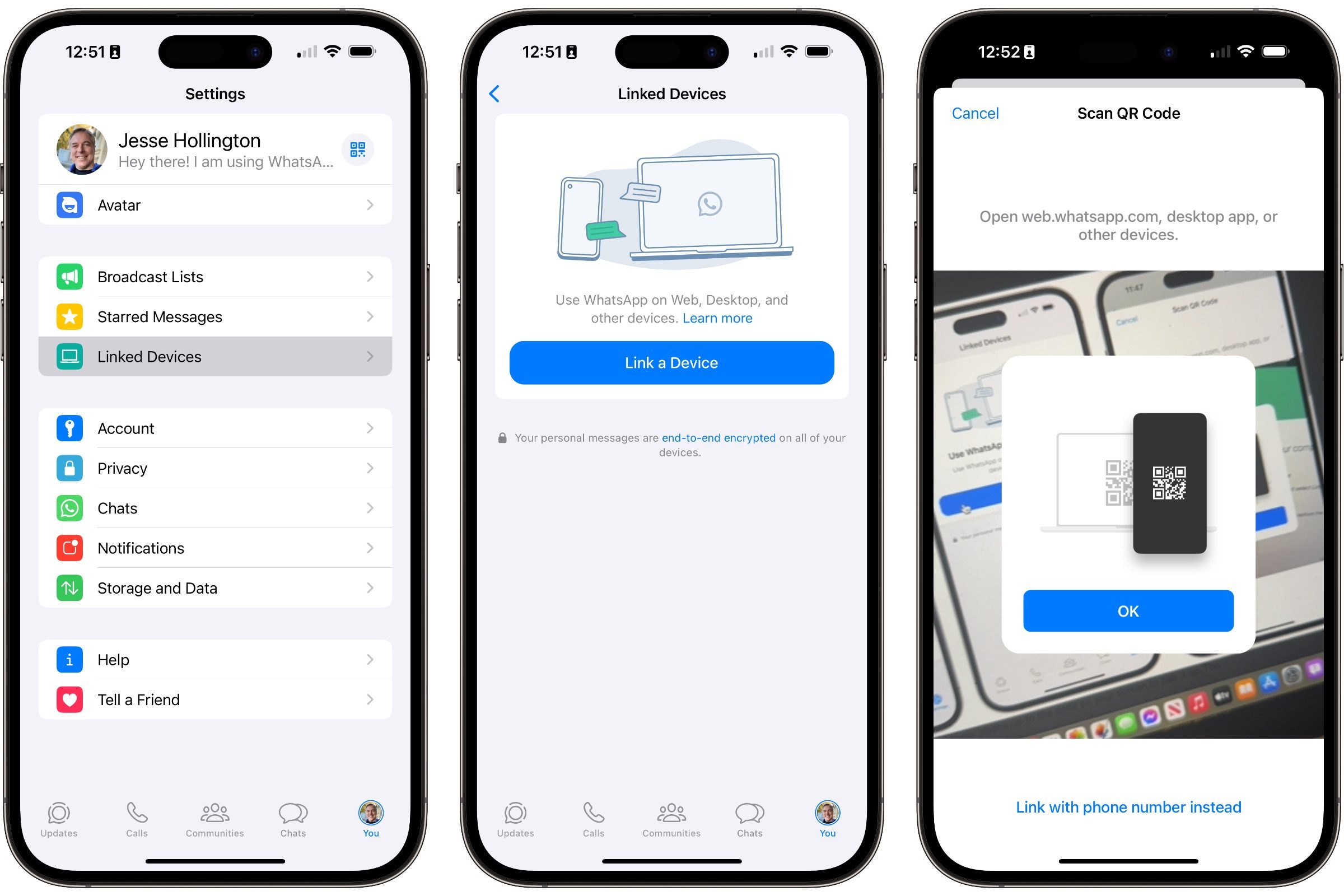
For iOS Users:
- Navigate to web.whatsapp.com on your computer.
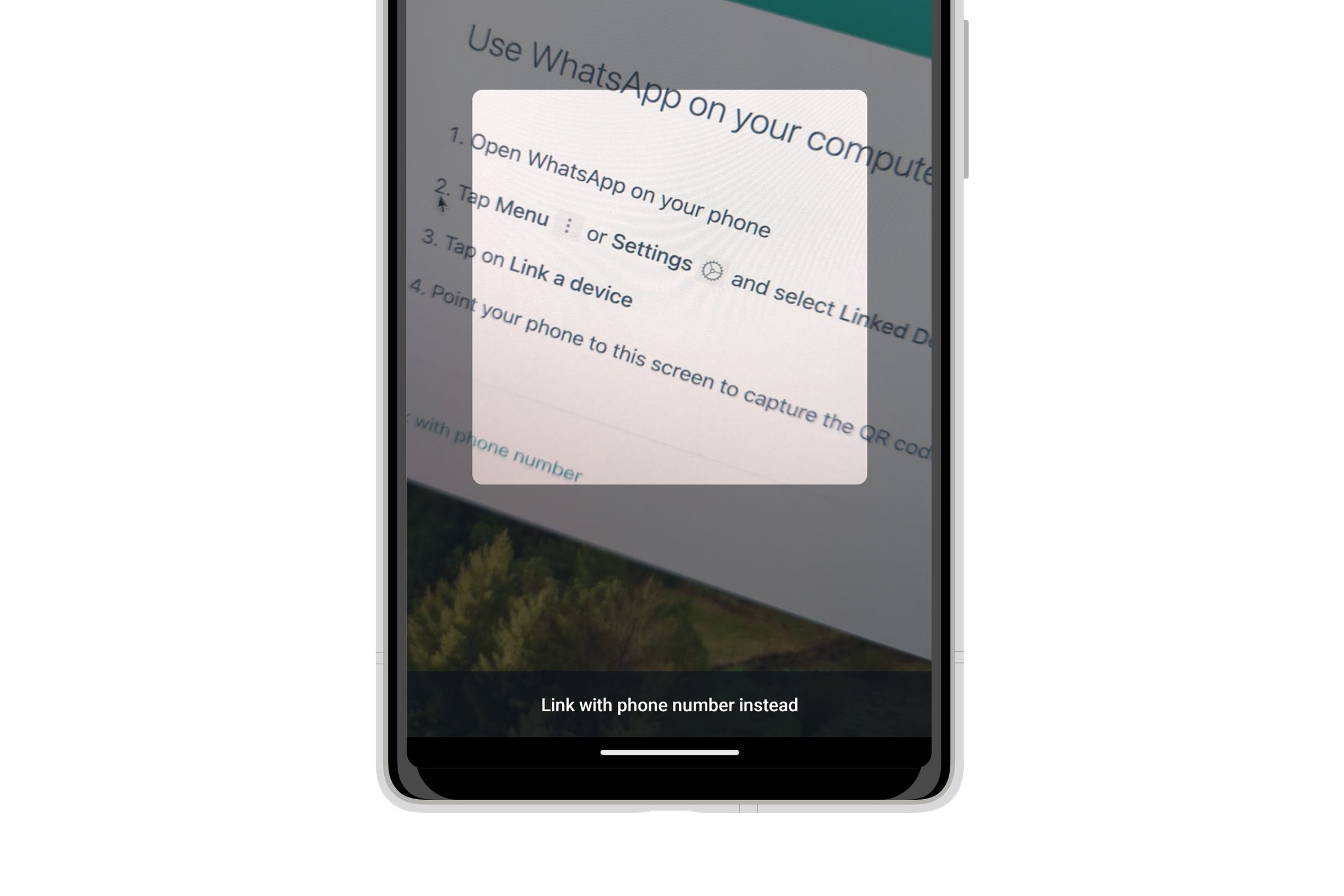
- Open WhatsApp on your iPhone and navigate to the Settings tab.
- Select Linked Devices.
- Tap Link a Device and authenticate using Face ID or your passcode.
- Point your camera at the QR code displayed on your computer screen.
For Android Users:

- Open your browser and head to the WhatsApp Web portal.
- Launch the WhatsApp app on your Android smartphone.
- Tap the vertical three-dot menu icon in the upper-right corner.
- Select Linked Devices followed by Link a Device.
- Once the scanner activates, capture the QR code on your monitor.
Phase 2: Bypassing the QR Code (Phone Number Login)
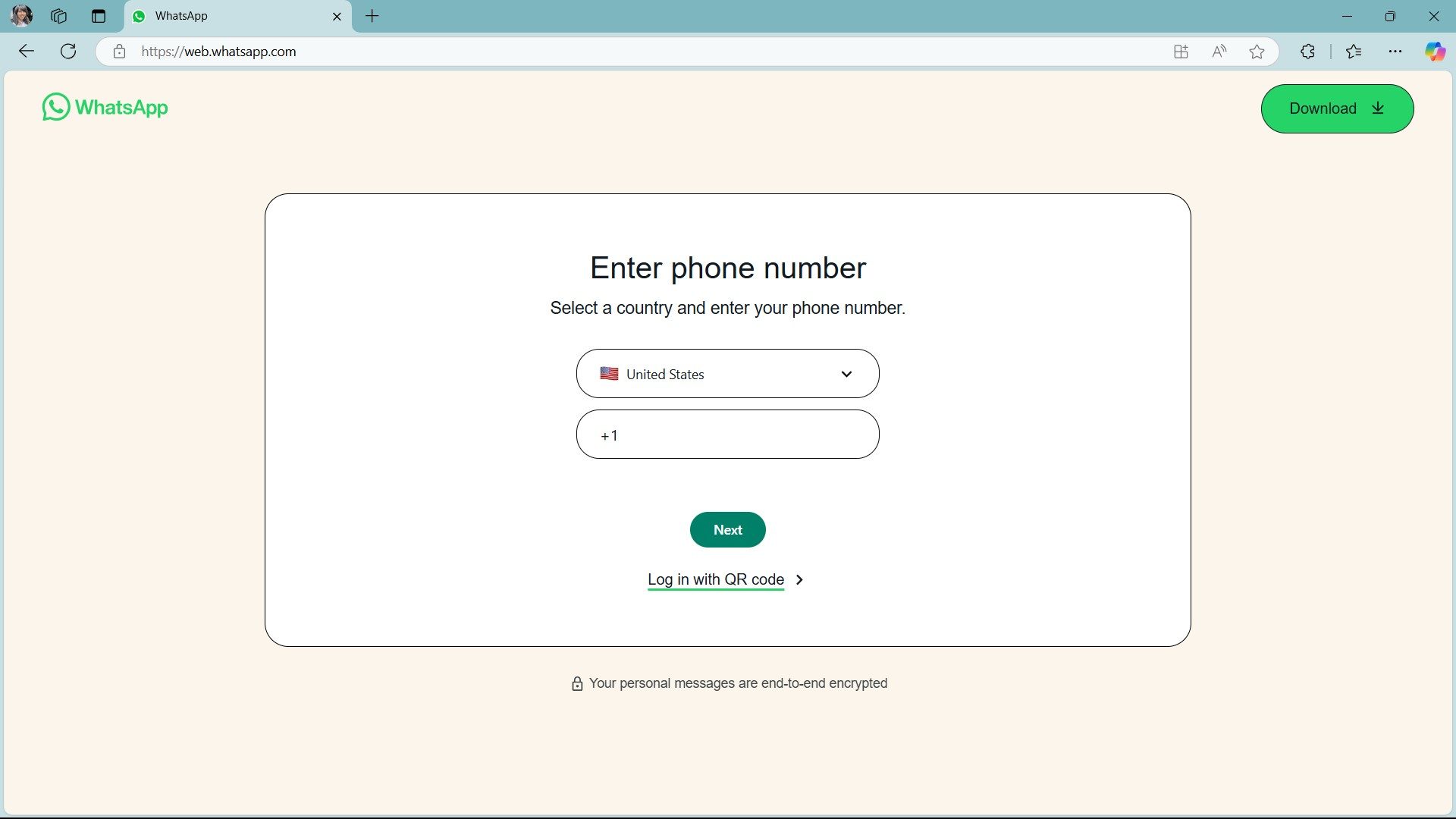
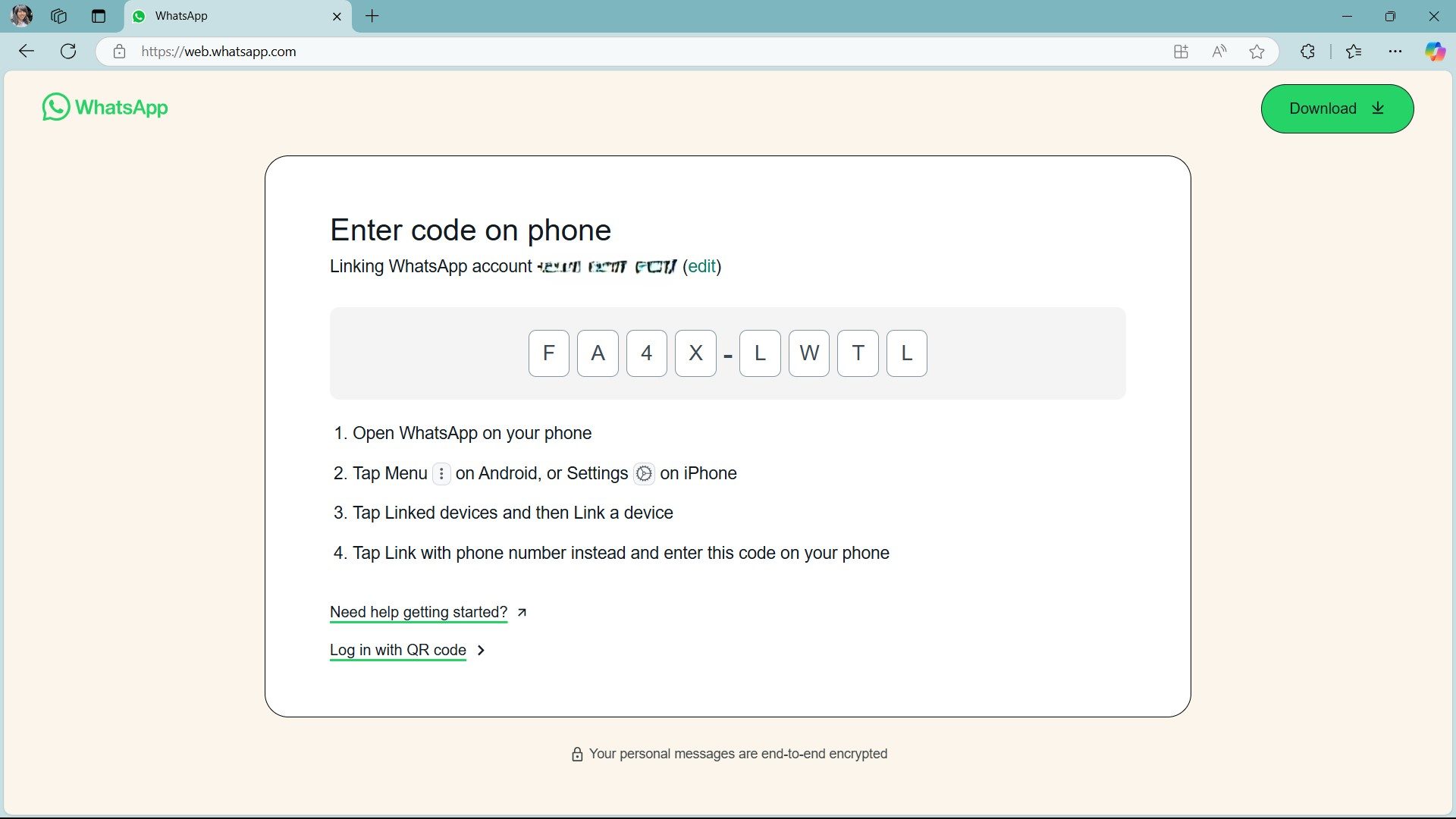
Meta has recently introduced an alternative for users who may have broken cameras or connectivity issues preventing a clean QR scan. You can now opt for "Link with phone number."
- After entering your phone number on the web portal, you will receive an eight-digit code.
- Input this code into the prompt that appears on your smartphone’s "Linked Devices" screen. This creates a secure, encrypted link between the two devices without requiring a scan.
Supporting Data: Why Desktop Integration Matters
The shift toward desktop-based messaging is supported by a clear trend in user behavior. Studies on digital ergonomics suggest that users who utilize a physical keyboard for long-form communication experience a 40% increase in typing speed and a significant reduction in the repetitive strain associated with "thumb-pecking" on glass screens.
Furthermore, the feature set on WhatsApp Web has reached near-parity with the mobile application. Recent updates have integrated:
- Rich Media Support: Effortless drag-and-drop file sharing for documents, spreadsheets, and high-resolution images.
- Content Creation Tools: The ability to send video messages and utilize self-destructing voice notes directly from your PC’s microphone and webcam.
- Message Management: Full editing capabilities for sent messages, allowing for corrections within a 15-minute window after transmission.
Official Responses and Privacy Protocols
Privacy remains the core pillar of the WhatsApp experience. Meta confirms that even when using the web version, all messages are protected by the same end-to-end encryption protocols used on the mobile app.
However, the "shared screen" nature of a desktop environment introduces new risks. To address this, Meta introduced the App Lock feature. This allows users to set a password for the WhatsApp Web browser tab. Even if you walk away from your workstation, your chat history remains obscured behind a password wall. This is a critical addition for office environments where privacy is essential.
How to Enable App Lock
- Click the Settings gear icon above your profile picture in the lower-left corner of the WhatsApp Web interface.
- Navigate to Privacy.
- Select App Lock and toggle the feature to "On."
- Create a unique password. Once active, the application will prompt for this password after a period of inactivity that you define.
Implications: The Future of Desktop Communication
The implications of a robust, independent WhatsApp Web are profound. As Meta continues to push its "Meta Platforms" ecosystem, the distinction between a phone app and a desktop application is dissolving.

Security Implications
While the convenience of staying logged in is a major productivity booster, it requires users to be more vigilant. If you use a public computer, always remember to manually log out of your session by navigating to the Menu (three dots) and selecting Log Out. If you forget, you can remotely revoke the session by opening the Linked Devices menu on your smartphone and selecting the active browser session to disconnect it instantly.
Workflow Integration
For businesses, the ability to handle customer support or internal team coordination via WhatsApp Web has reduced the need for fragmented communication tools. By keeping the interface clean and familiar, Meta has successfully ensured that even the most technologically hesitant users can adopt the platform for professional use.
Advanced Tips for Power Users
To truly master WhatsApp Web, one must look beyond basic messaging:
- Keyboard Shortcuts: Use the built-in keyboard commands to navigate quickly. For example,
Ctrl + N(orCmd + Non Mac) creates a new chat, whileCtrl + Shift + ]moves you to the next chat in your list. - Media Management: Instead of downloading every image, use the "copy-paste" functionality. You can copy an image from a website or a folder and paste it directly into the chat input box.
- Status Updates: While you cannot create a status update on the web version, you can view, reply to, and track the status updates of your contacts. This is particularly useful for those who use Status for professional updates or announcements.
- Archiving: Keep your workspace clean. Right-click any conversation to "Archive" it, moving it out of your primary view without deleting the history.
Conclusion: A Tool for the Modern Era
WhatsApp Web is far more than a convenience; it is a fundamental tool for the modern digital worker. By mirroring the power of the mobile app on a desktop-optimized interface, it allows for faster, more professional, and more ergonomic communication.

As we look toward the future, we expect further integration between Meta’s platforms, potentially allowing for more robust AI-driven features—such as automated meeting summaries or direct integration with calendar services—to appear within the browser version. For now, however, mastering the basics of linking, securing, and managing your WhatsApp Web session is the best way to ensure your digital life remains organized, efficient, and, above all, private.
Whether you are managing a team, collaborating on a project, or simply staying in touch with family, the desktop experience provides the stability and power that small screens simply cannot match. Take the time to set up your preferences, enable App Lock for security, and embrace the efficiency of a full-sized keyboard. Your productivity will thank you.


 Lina Hope
 Jia Lissa