Rifan Muazin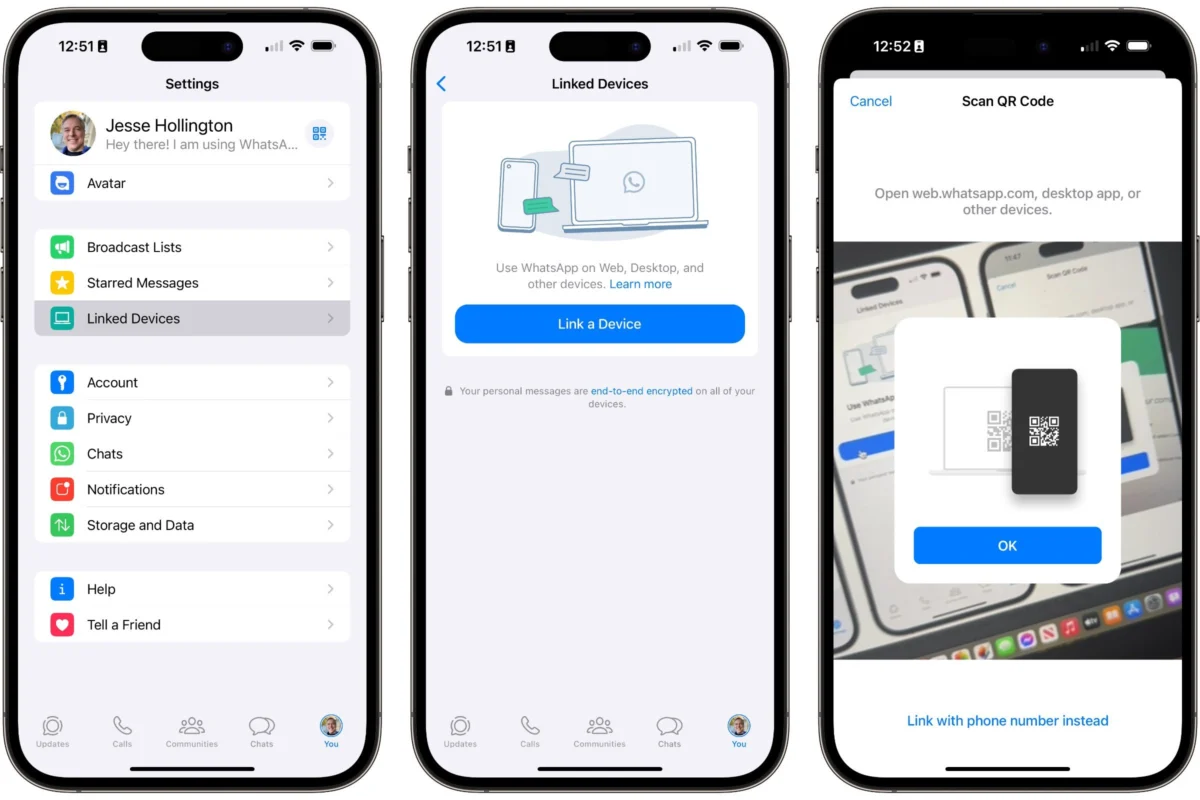
For over a decade, WhatsApp has served as the world’s primary digital tether, anchoring social and professional communication to the smartphone. While the mobile app remains the primary gateway, the modern workplace and the rise of remote and hybrid environments have demanded a more versatile approach to messaging. Enter WhatsApp Web—a browser-based evolution of Meta’s flagship platform that has transformed from a simple "mirroring" tool into a robust, standalone-capable workspace.
For professionals who spend their day navigating desktop ecosystems, WhatsApp Web is no longer a secondary convenience; it is a productivity necessity. By shifting the burden of communication from a handheld screen to a full-sized keyboard and monitor, users can manage complex threads, share large files, and maintain professional continuity without the constant distraction of switching devices.

The Evolution of Connectivity: Main Facts and Functionality
WhatsApp Web is an extension of the mobile application, designed to synchronize your entire messaging history across platforms. Unlike legacy versions of the service that required your phone to be actively connected to the same Wi-Fi network as your computer, modern multi-device support allows the browser version to function independently for limited periods once the initial pairing is established.
The service provides a seamless transition between mobile and desktop. Features that have become staples of the mobile experience—such as self-destructing voice messages, high-resolution media sharing, and the ability to edit sent messages—are fully integrated into the browser interface. This parity ensures that whether you are on a Windows PC, a Mac, or a Linux machine, the depth of your communication remains uncompromised.

A Chronological Shift in Utility
The trajectory of WhatsApp Web mirrors the changing demands of the digital workforce. Originally launched in 2015, the service was initially a rudimentary tool that required the user’s phone to act as a bridge; if the phone’s battery died or the cellular connection dropped, the browser session would immediately terminate.
In the years following, Meta invested heavily in server-side synchronization. The most significant milestone in this timeline was the rollout of true multi-device support. This allowed users to link up to four additional devices (including computers and tablets) to a single WhatsApp account. This shift effectively decoupled the desktop experience from the physical state of the phone, making the platform viable for corporate environments and high-volume communication. Today, the service supports complex encryption protocols that ensure that, even in a browser environment, end-to-end security remains the bedrock of the user experience.
Technical Infrastructure and Security Implications
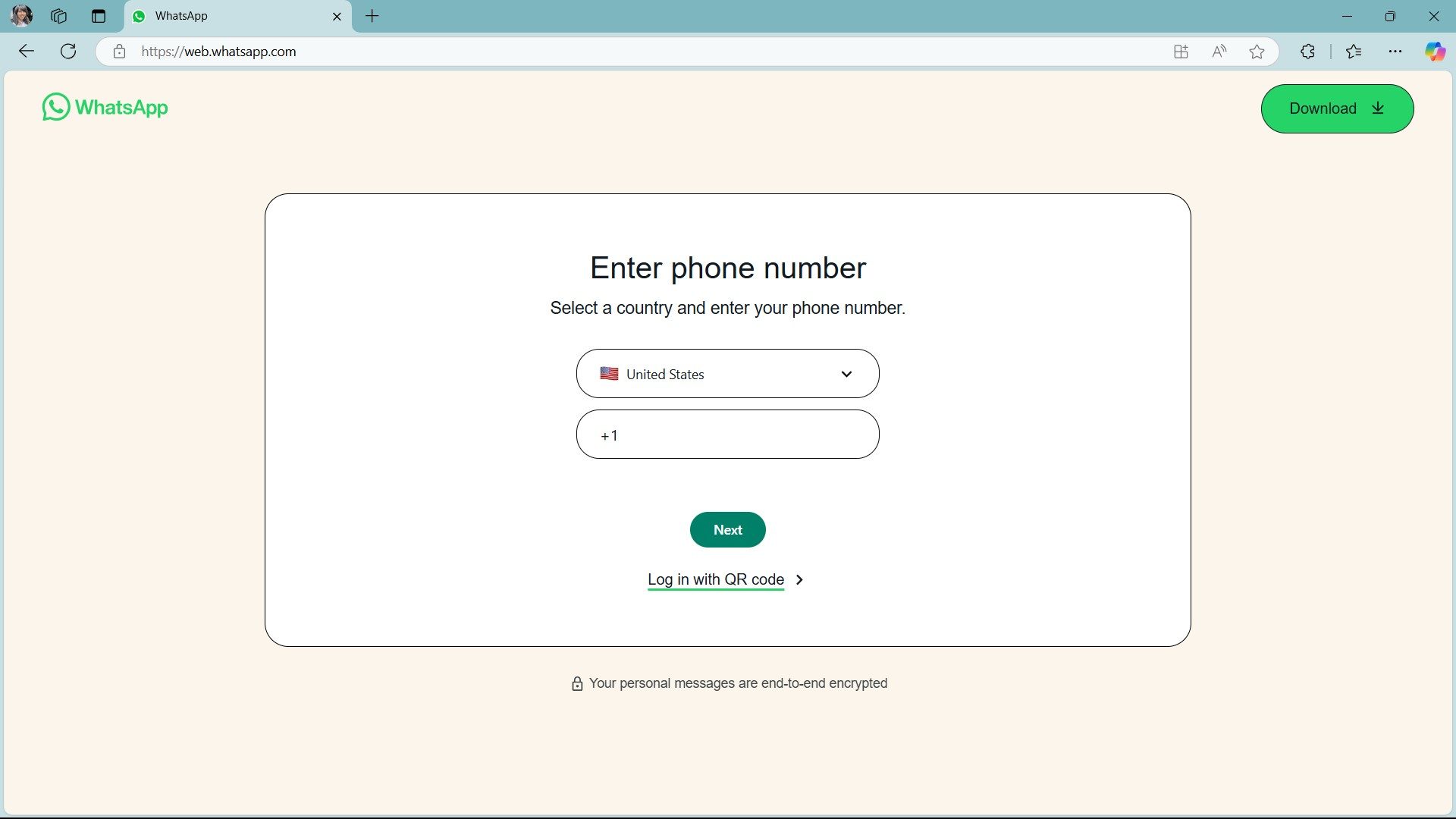
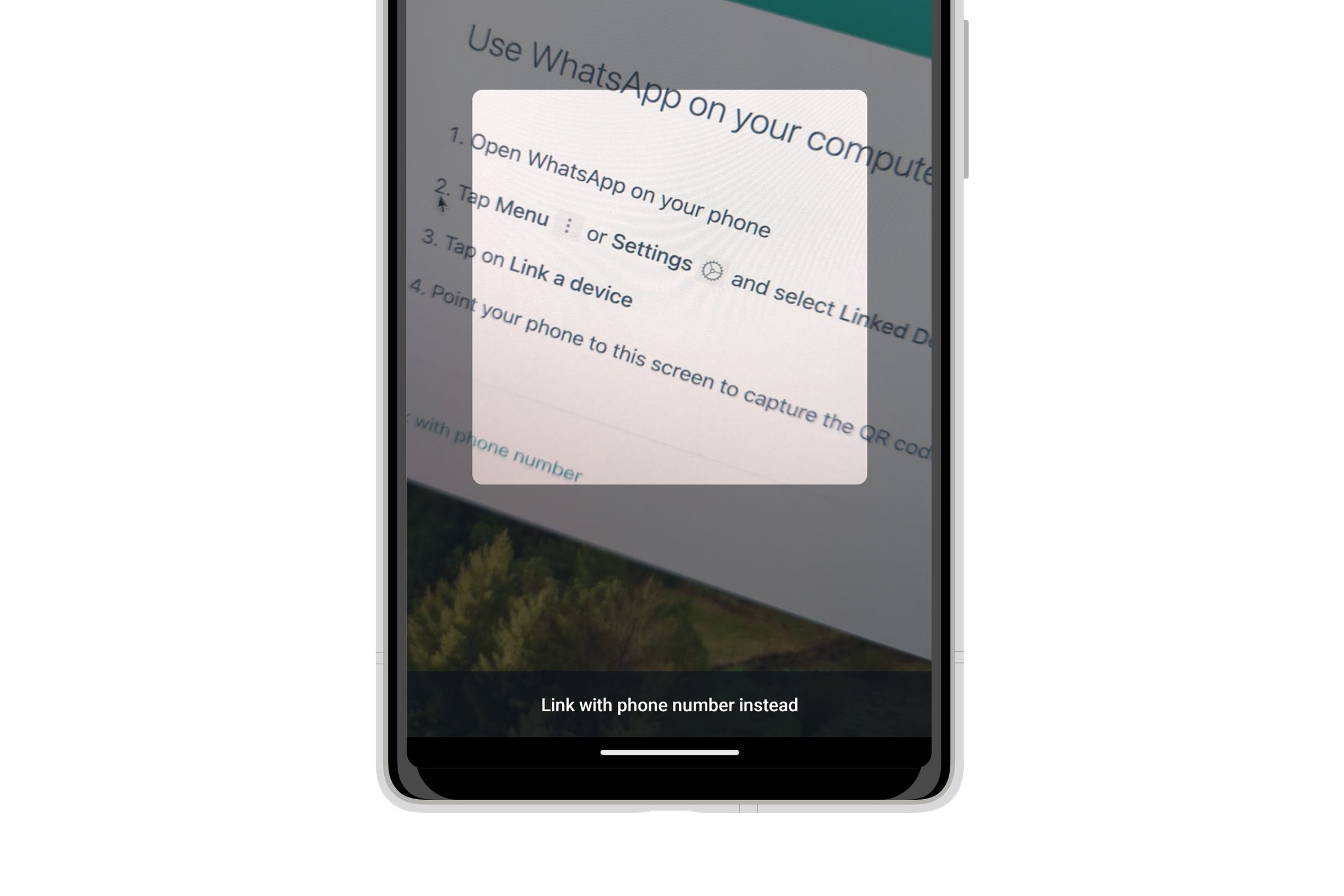
The primary hurdle for many users is the unconventional login process. Because WhatsApp identifies users by their phone number rather than an email-and-password credential system, the security handshake is handled via QR code scanning or, more recently, a phone-number-based authentication method.
The Security-Privacy Paradox
The lack of a traditional password is a double-edged sword. While it eliminates the risk of credential stuffing and phishing associated with standard passwords, it places the burden of access control on the physical device. To address this, Meta introduced the App Lock feature for WhatsApp Web.

This security layer allows users to set a unique, browser-specific password that obscures chat contents even when the browser remains open. This is a critical development for users in shared office spaces, ensuring that sensitive data is not exposed to passersby. It is important to note, however, that this lock is local to the specific browser session; it does not replicate across devices, maintaining a siloed security model that prevents a single compromised password from unlocking an entire ecosystem.
Step-by-Step Integration: How to Link Your Device
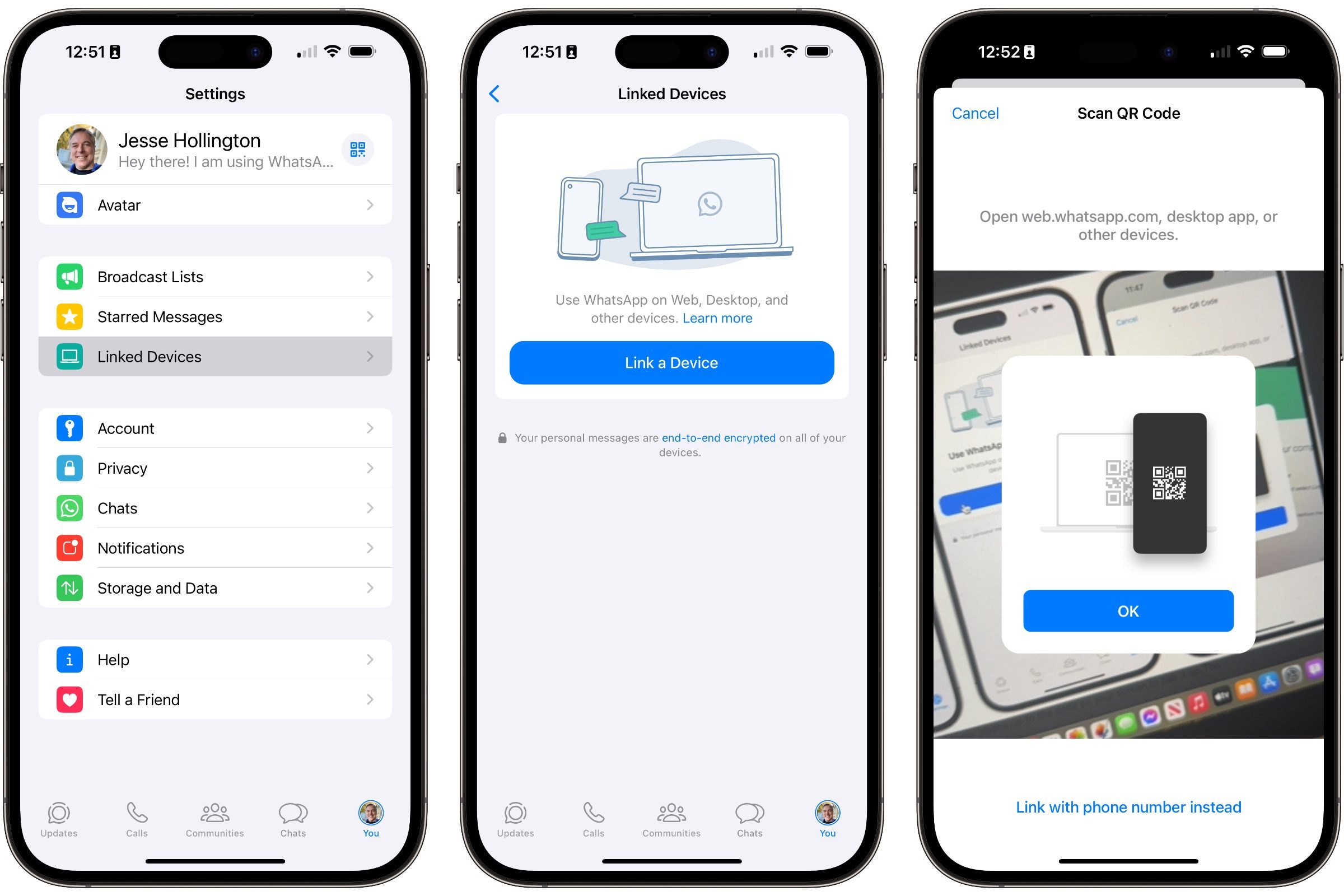
Whether you are using an iPhone or an Android device, the process of linking your account to a desktop browser is designed to be instantaneous.
For iOS Users:
- Navigate to the Source: Open your preferred browser (Chrome, Safari, Edge, or Firefox) and visit web.whatsapp.com.
- Access Linked Devices: On your iPhone, navigate to Settings, then tap Linked Devices.
- Initiate Pairing: Select Link a Device. You will likely be prompted to authenticate via Face ID or Touch ID.
- Scan: Hold your device to the screen to capture the QR code. The browser will refresh, and your conversation history will populate automatically.
For Android Users:
- Access the Menu: Open WhatsApp and tap the three-dot icon in the upper-right corner.
- Select Link: Tap Linked Devices and follow the prompt to Link a Device.
- Biometric Security: Use your fingerprint or PIN to authorize the action.
- Final Sync: Scan the QR code displayed on the desktop screen.
The "No-QR" Alternative
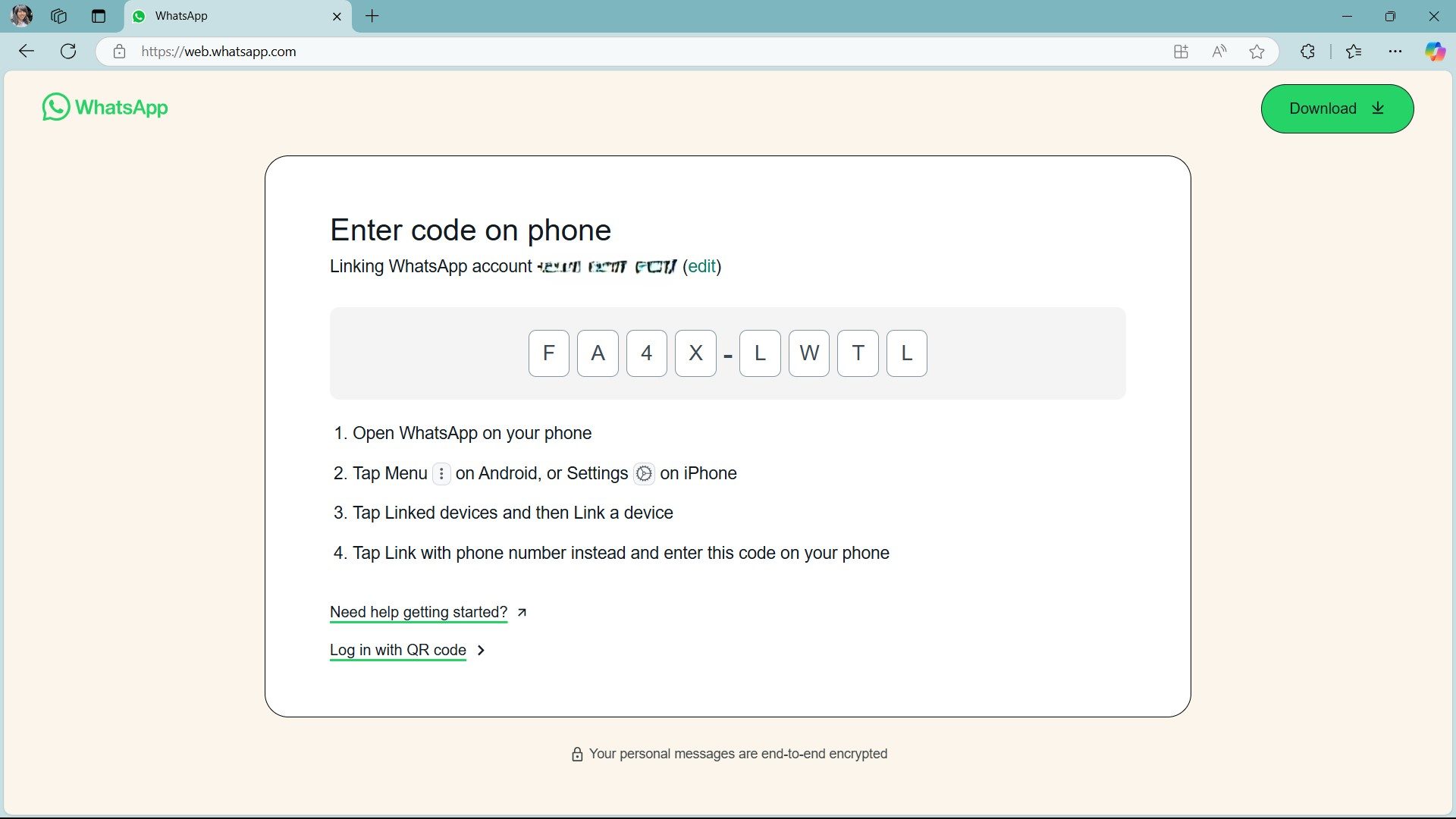
For users who find the camera-scanning process inconvenient or whose camera hardware is malfunctioning, WhatsApp now offers a phone-number login method. By entering your registered number into the desktop site, you receive an eight-digit alphanumeric code. This code can then be input into the "Link with phone number" section within the WhatsApp mobile app, bypassing the need for a QR scanner entirely.
Professional Implications and Workflow Management
The shift to browser-based messaging has significant implications for workplace productivity. In a standard workflow, the ability to drag-and-drop documents directly into a chat, rather than emailing them to oneself or using a cloud-storage bridge, drastically reduces the time required for file transfers.
Furthermore, the keyboard-centric nature of the desktop interface encourages longer-form communication. Where a phone screen might limit the user to brief, clipped messages, the desktop environment invites more substantial, context-rich exchanges. For team leads and managers, the ability to manage group chats with hundreds of participants via a mouse-and-keyboard setup is a vastly more manageable task than doing so on a mobile device.
Official Responses and Future Outlook
Meta has consistently stated that the goal of WhatsApp Web is to provide a "uniform experience" across all endpoints. Their official stance emphasizes that privacy remains the priority, even as they expand the functionality of the web interface. By keeping the encryption keys on the mobile device and using a secure token-based system for the browser, Meta has successfully navigated the technical challenges of bringing a mobile-first app to the desktop.

Looking ahead, industry analysts suggest that Meta will likely continue to blur the lines between WhatsApp Web and the standalone desktop application. We can expect further integration with enterprise-grade features, potentially including advanced search filters for corporate users, improved integration with calendar tools, and perhaps deeper AI-driven assistance for drafting professional responses.
Best Practices for Privacy and Maintenance
To maintain the integrity of your WhatsApp Web session, follow these professional best practices:
- Active Session Management: Always check your "Linked Devices" list on your phone. If you see an unrecognized device or a browser location you don’t recall, terminate the session immediately.
- Utilize App Lock: If you work in a public or shared environment, ensure the App Lock feature is enabled. It takes seconds to set up and provides a crucial layer of defense against unauthorized physical access to your workstation.
- Clear Cache Regularly: For performance optimization, clear your browser’s cache and cookies periodically. This prevents the browser from becoming sluggish as it stores large volumes of media history.
Conclusion
WhatsApp Web has effectively graduated from a niche convenience to a cornerstone of modern digital communication. By providing a secure, stable, and highly functional interface that mirrors the mobile app, it has empowered users to reclaim their focus, allowing for a more ergonomic and efficient way to stay connected. Whether you are a student, a creative professional, or a corporate executive, mastering the nuances of this platform is an essential step in optimizing your digital life. As Meta continues to iterate on the product, the gap between "mobile-only" and "desktop-ready" will continue to close, promising a future where the device you choose to use is irrelevant to the quality of the conversation you are having.


 Lina Hope
 Jia Lissa