Lina Irawan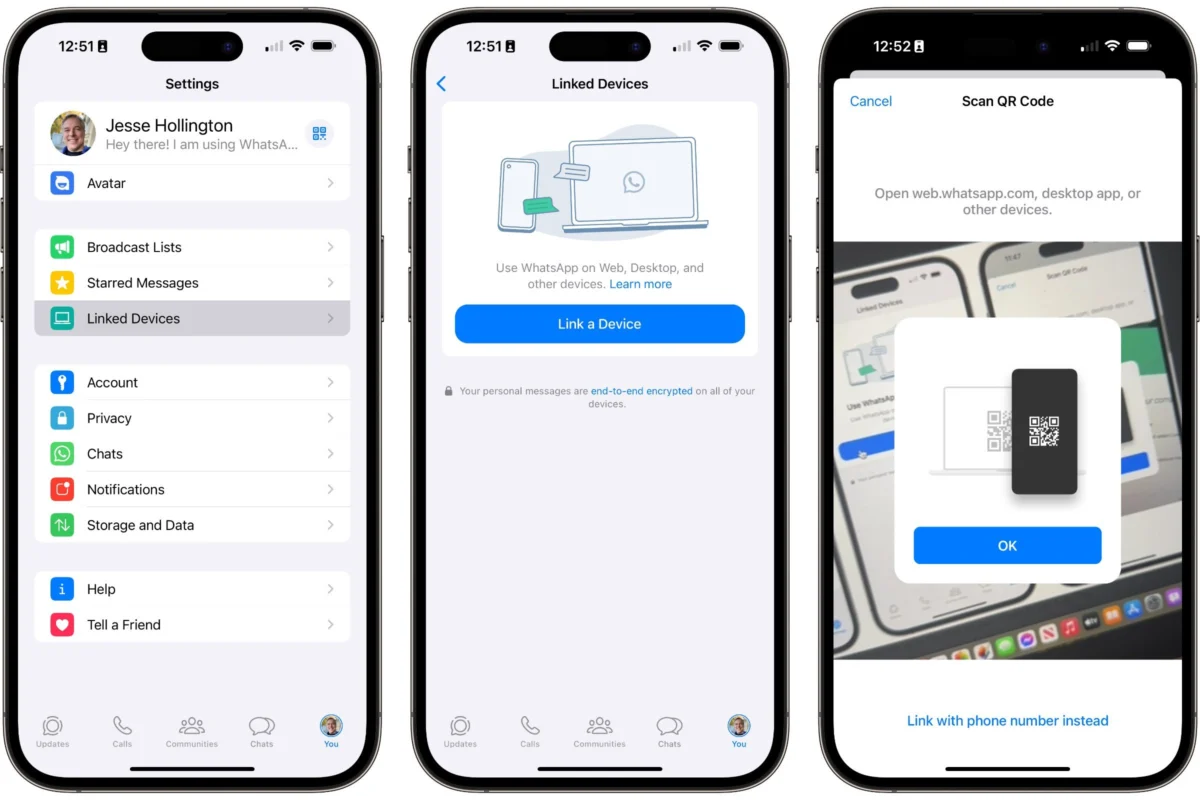
For years, WhatsApp was defined by its mobile-first philosophy. As Meta’s flagship messaging platform, it transformed how the world communicates, yet it remained tethered to the physical presence of a smartphone. For the millions of professionals, students, and power users who spend their days anchored to a desktop or laptop, the constant need to glance at a phone screen—or physically pick it up to type—became a friction point in an otherwise seamless digital workflow.
Enter WhatsApp Web: a robust, browser-based extension of the mobile experience that has evolved from a simple mirroring tool into a powerful, standalone productivity suite. Whether you are managing complex group chats, sharing large files, or simply prefer the ergonomic advantage of a mechanical keyboard, WhatsApp Web has matured to accommodate the demands of modern computing.

The Evolution of the Platform: From Mirroring to Multi-Device
Historically, WhatsApp Web was a fragile tether. It relied entirely on your smartphone maintaining an active, stable internet connection to "bridge" messages to your browser. If your battery died or your phone lost signal, the web session would instantly disconnect.
Meta recognized that this was a significant bottleneck for enterprise and casual users alike. Consequently, the company implemented "Multi-Device" architecture. This paradigm shift allowed the web client to function independently of the primary mobile device. While the initial handshake—the security verification process—still requires your phone, once linked, your browser can maintain its connection to WhatsApp’s servers independently. This ensures that even if your phone is tucked away in a bag, charging in another room, or temporarily without cellular service, your desktop communication remains fluid and uninterrupted.

Setting the Foundation: How to Get Started
Because WhatsApp identifies users via unique phone numbers rather than traditional username-and-password credentials, security is managed through a "linkage" system. To begin, navigate to web.whatsapp.com in any modern browser, including Chrome, Safari, Edge, or Firefox.
The QR Code Method
The most common entry point is the QR code scanner. This serves as a cryptographic handshake, verifying that the physical owner of the account is the one authorizing the browser session.
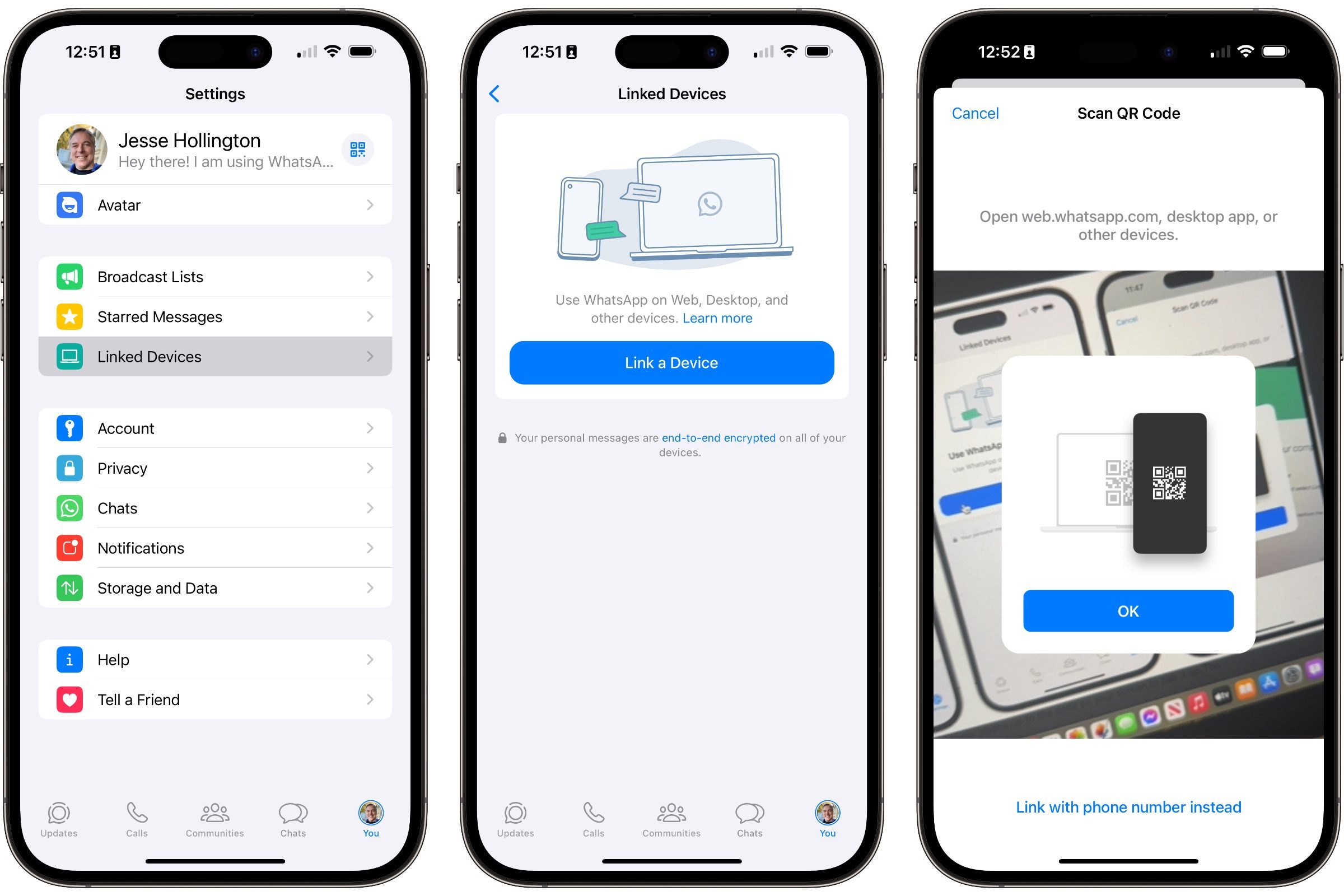
- Launch the Web Client: Navigate to the WhatsApp Web portal.
- Access Linked Devices: On your mobile device, navigate to Settings (iOS) or the three-dot menu (Android) and select Linked Devices.
- Initiate Pairing: Tap Link a Device. Your phone will prompt you for biometric authentication (Face ID, Touch ID, or fingerprint) to confirm your identity.
- Scan and Synchronize: Use your phone’s camera to scan the QR code displayed on your monitor. The browser interface will refresh instantly, pulling in your active chat history.
The Phone Number Authentication Method
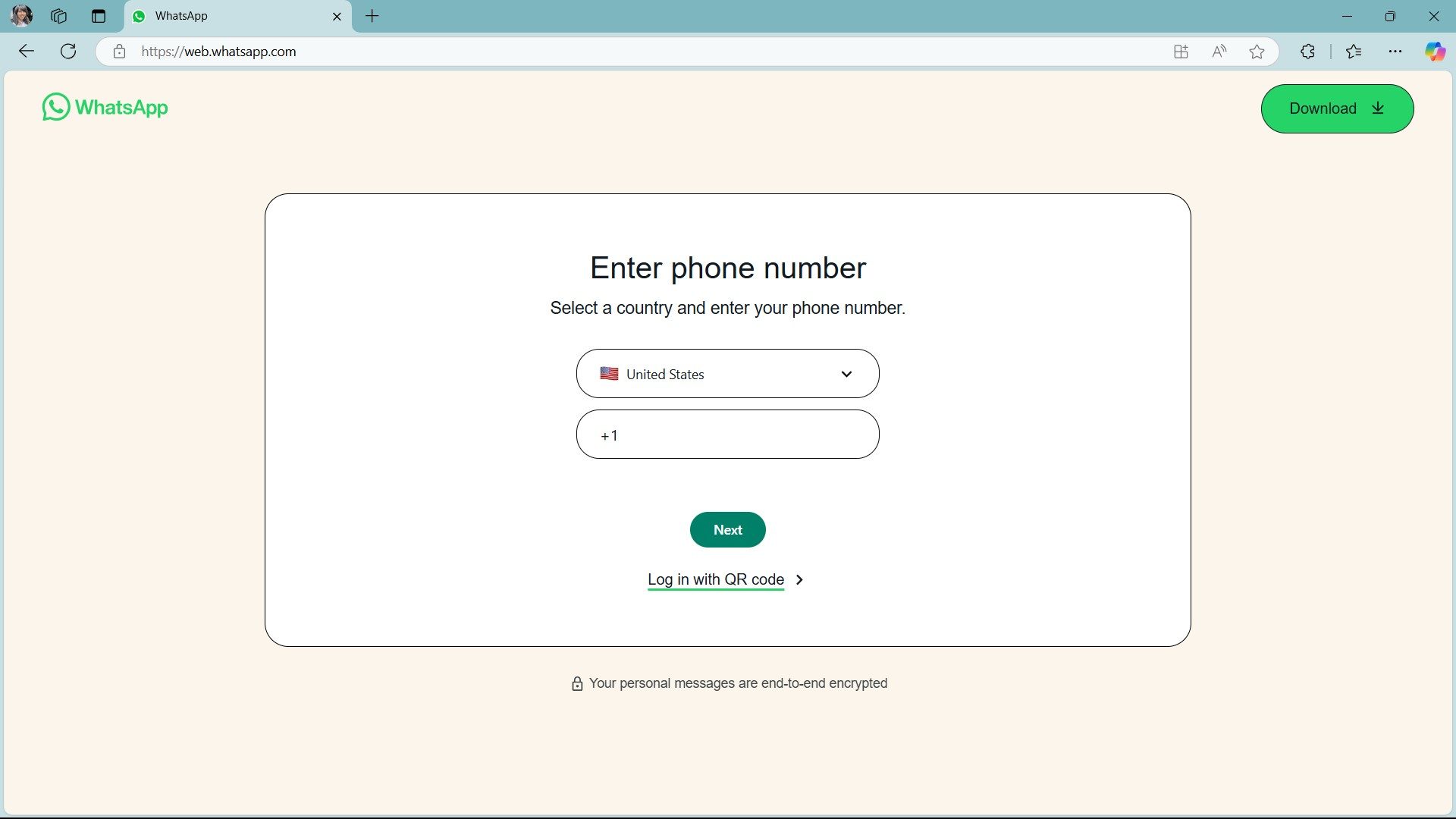
If you are unable to use your camera or prefer an alternative, Meta now supports a manual linkage method. Instead of scanning a code, select "Link with phone number" on the web login screen. Enter your mobile number, and WhatsApp will push an eight-digit alphanumeric code to your phone. Inputting this code into the browser achieves the same level of encrypted security without requiring a camera scan.
Productivity Features: Why the Desktop Experience Wins
The primary advantage of WhatsApp Web is the conversion of a handheld experience into a desktop workflow. The interface is optimized for high-resolution monitors, offering a split-screen view that allows you to manage multiple conversations simultaneously.

Advanced Communication Tools
WhatsApp has aggressively updated the web version to mirror mobile capabilities:
- Multimedia Integration: You can drag and drop documents, PDFs, high-resolution images, and video files directly into the chat window. This makes it an essential tool for office environments where file sharing is constant.
- Voice and Video Messaging: The platform now supports sending voice notes and video messages, allowing for nuanced communication that text sometimes fails to capture.
- Message Editing: Typos are no longer permanent. Users can hover over a sent message to edit its content, a feature that has significantly improved the professional viability of the app.
- Self-Destructing Media: Privacy-conscious users can send voice notes or images set to disappear after a single view, ensuring sensitive information does not linger on a recipient’s device.
Security: Safeguarding Your Conversations
One of the most common concerns regarding desktop messaging is privacy. If you share a workspace or leave your laptop unattended, there is a risk of unauthorized access.
To mitigate this, WhatsApp introduced a native App Lock feature for the web. This functions as a digital vault for your chats:
- Navigate to Settings (the gear icon).
- Select Privacy.
- Locate App Lock.
- Define a secure password.
Once enabled, the browser tab will blur or lock if left inactive for a duration you specify. This allows you to step away from your desk without the need to log out, ensuring your privacy remains intact without the friction of constant re-linking.
Chronology of Updates
- The Early Years: Web functionality was basic, relying on browser extensions and a persistent mobile connection.
- The Multi-Device Era (2021–2022): Meta introduced the ability to use the account on multiple devices (up to four) without the phone needing to be online.
- Modern Refinements (2023–2024): The introduction of the "Link with phone number" feature and enhanced privacy controls, such as the desktop-specific App Lock, marked the transition from a "mobile companion" to a "desktop-class application."
Implications for the Modern Workplace
The rise of WhatsApp Web has deep implications for the professional landscape. While platforms like Slack and Microsoft Teams dominate the corporate world, WhatsApp remains the primary communication tool for small businesses, freelancers, and global teams in emerging markets.
The ability to maintain a professional, desktop-accessible presence without leaving the familiar WhatsApp ecosystem has reduced the need for fragmented communication. However, it also introduces the risk of "always-on" availability. Users are encouraged to utilize the "Notification" settings in the web menu to mute non-essential groups, ensuring that the convenience of desktop messaging does not come at the cost of deep work or personal downtime.

Final Thoughts: A Seamless Transition
WhatsApp Web is no longer just a "nice to have"—it is a critical tool for anyone who relies on the platform for daily coordination. By bridging the gap between mobile convenience and desktop power, it allows for a more efficient, ergonomic, and organized communication experience. Whether you are a power user managing hundreds of threads or someone who simply prefers typing with ten fingers rather than two thumbs, the web interface provides the necessary infrastructure to stay connected without being glued to your phone.
To ensure maximum security, remember to periodically check your Linked Devices list in your mobile settings to remove any browsers or computers you no longer use, maintaining a clean and secure digital footprint across all your hardware.


 Lina Hope
 Jia Lissa