Nana Wu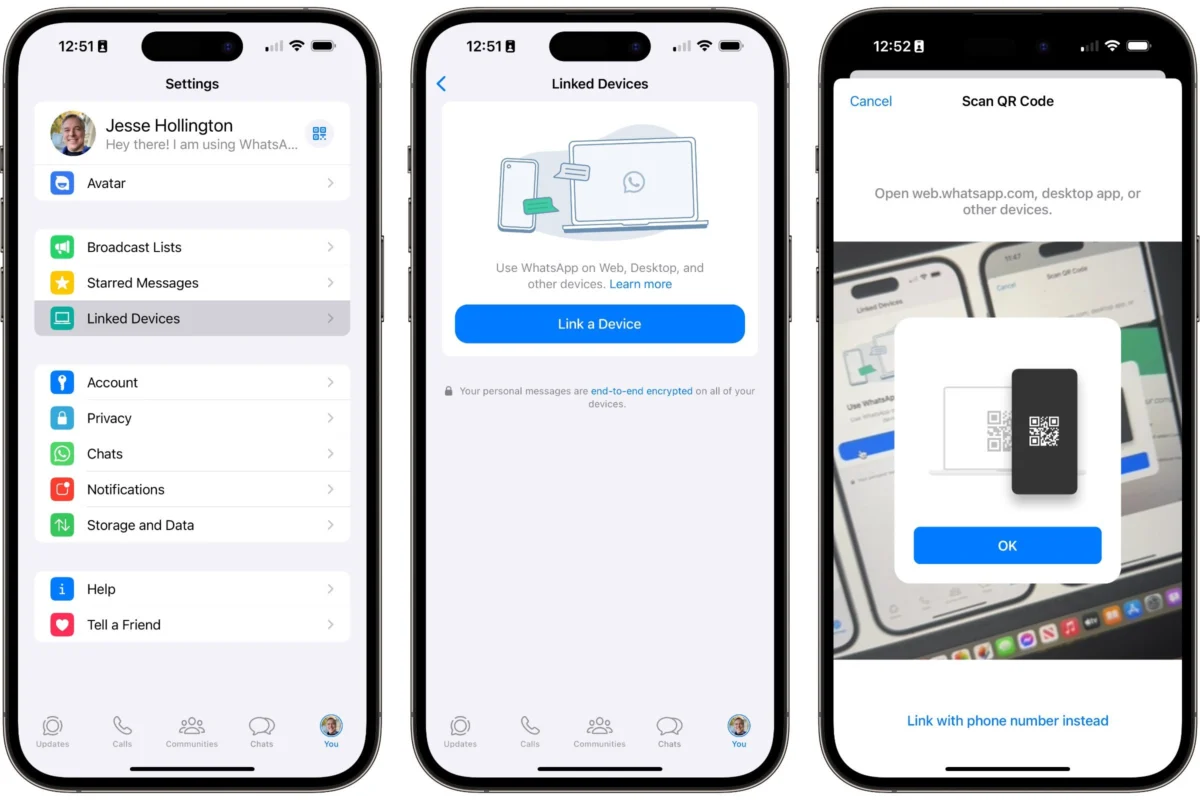
For over a decade, WhatsApp has served as the world’s primary digital tether, anchoring social and professional communication to the smartphone. While Meta’s messaging giant remains a phone-first application, the evolution of its browser-based counterpart—WhatsApp Web—has fundamentally changed how power users interact with their digital lives. No longer just a mirror of your mobile device, WhatsApp Web has matured into a robust, standalone-capable platform that enhances productivity for anyone tethered to a desktop or laptop.
The Evolution of Desktop Integration
The shift toward desktop-native experiences reflects a broader trend in communication technology. Modern professionals spend the vast majority of their working hours at a desk, and the constant friction of reaching for a mobile device to answer a message creates significant "context switching" costs. By providing a full-keyboard experience, WhatsApp Web allows for rapid typing, effortless file management, and a sprawling view of long-form conversations that a mobile screen simply cannot accommodate.

Historically, WhatsApp Web was a fragile extension of the mobile app; if your phone lost its cellular signal or battery power, the browser session would immediately drop. Today, that dependency has been largely dismantled. Thanks to multi-device architecture, the web interface functions independently, allowing users to stay connected even if their phone is tucked away in a bag, charging in another room, or offline. While the mobile device remains the mandatory "anchor" for initial security verification, the desktop experience has become significantly more autonomous.
Chronology of the Modern WhatsApp Web Experience
The transition from a tethered mirror to an independent web app did not happen overnight. Understanding the current functionality requires looking at how the service has evolved:

- The Early Days (2015): WhatsApp Web launched as a basic, browser-based extension of the mobile app, requiring the phone to be actively connected to the internet at all times.
- The Multi-Device Revolution (2021-2022): Meta introduced multi-device support, which fundamentally changed the back-end infrastructure. This allowed for up to four devices to be linked to a single account without requiring the primary smartphone to remain online.
- Feature Parity (2023-Present): Recent updates have brought advanced mobile features to the desktop, including the ability to send self-destructing voice notes, edit sent messages, and initiate high-quality video messages directly from the browser.
Strategic Benefits and Supporting Data
For the modern user, the transition to the desktop interface offers three primary advantages:
- Workflow Efficiency: The use of physical keyboards facilitates faster communication, particularly for those managing large volumes of correspondence or coordinating group projects.
- File Management: Attaching documents, PDFs, and high-resolution images from a local computer drive is significantly more efficient than transferring those files to a phone first.
- Privacy and Security: With the introduction of the "App Lock" feature, users can now maintain a persistent, secure, and password-protected session on their work computers, mitigating the risk of unauthorized access.
Setting Up: The Secure Gateway
Because WhatsApp accounts are cryptographically tied to phone numbers rather than traditional email-password combinations, security during the handshake process is paramount. There are two primary methods to bridge your phone to the web:
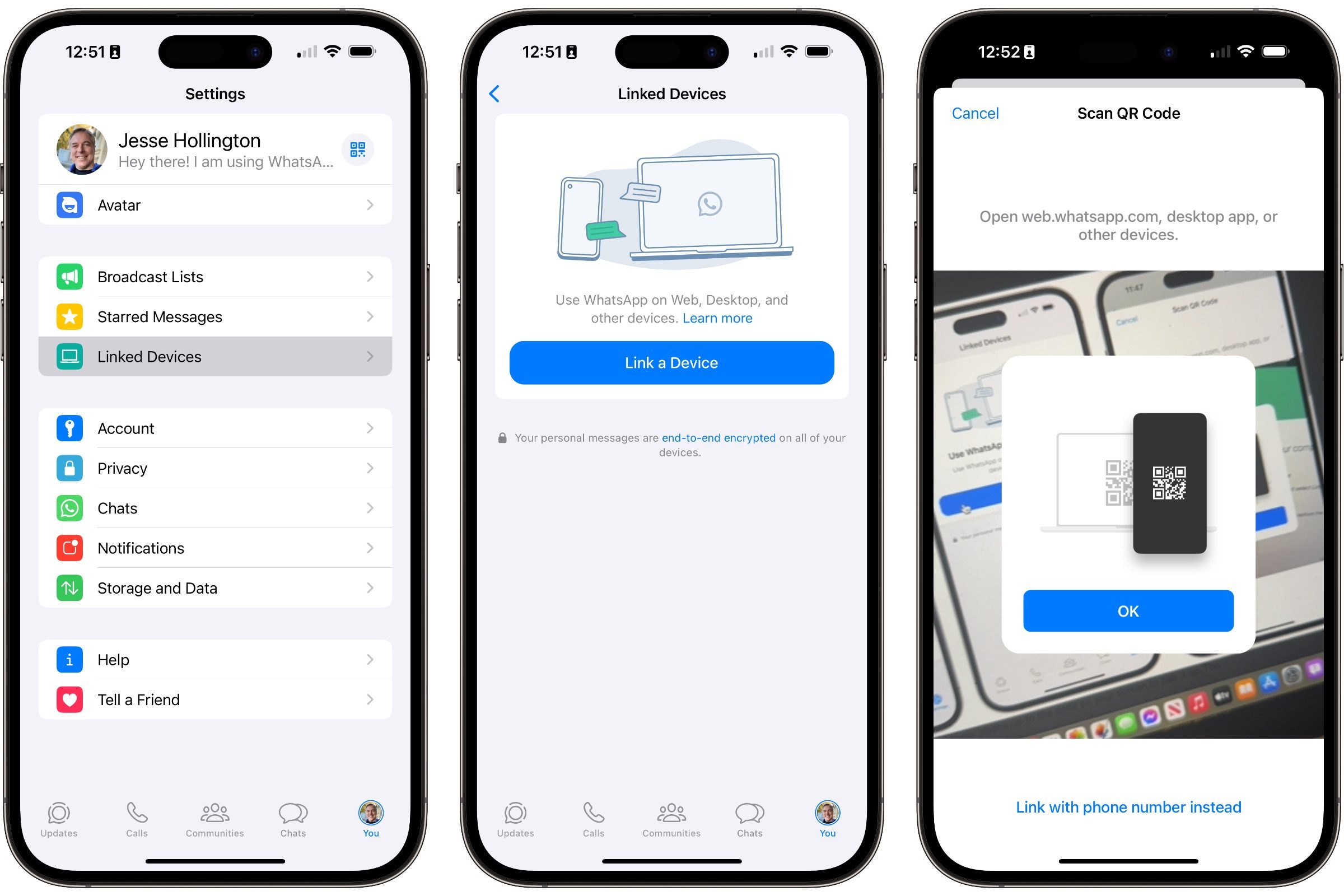
Method 1: The QR Code Scan
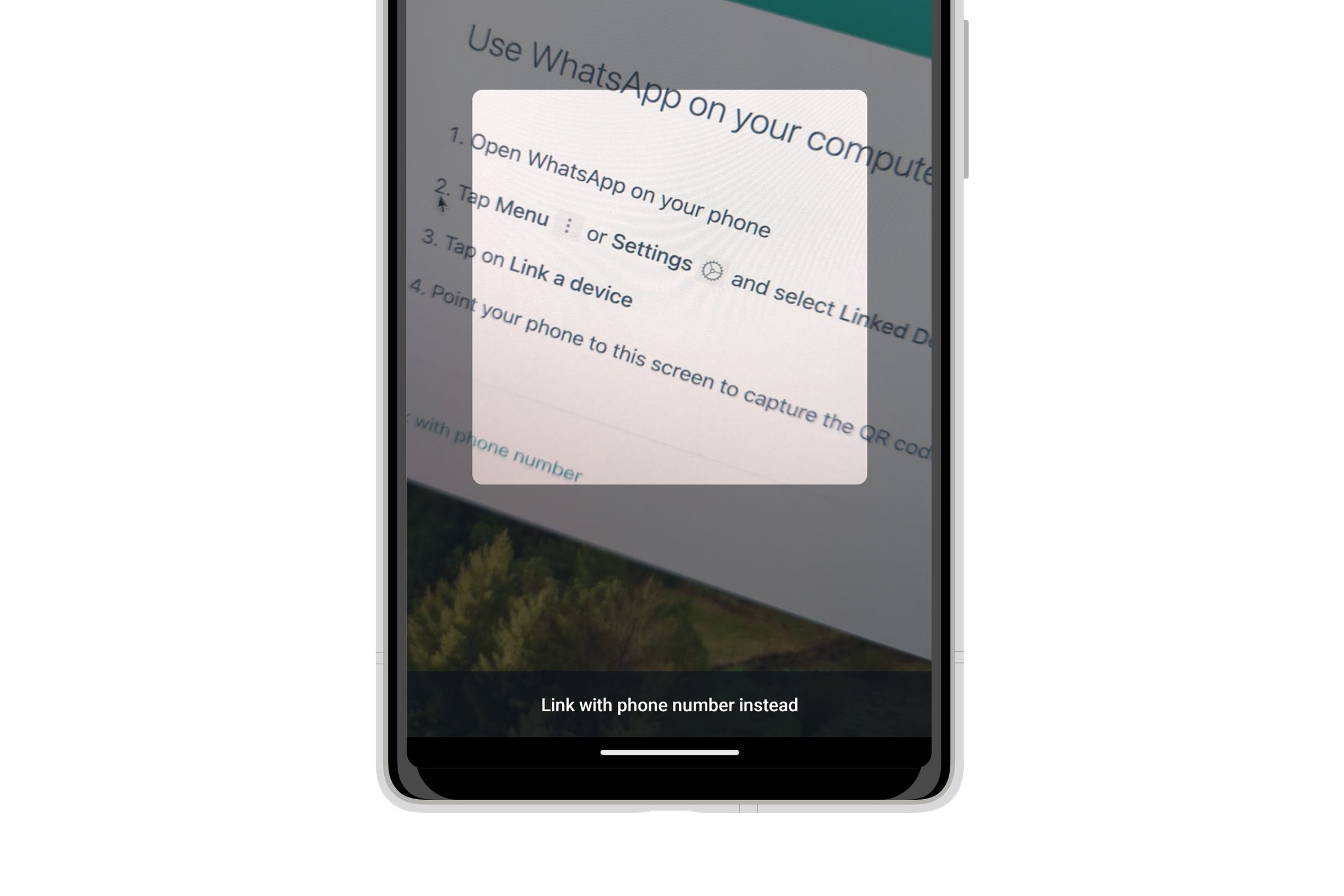
This remains the fastest way to link devices. By navigating to web.whatsapp.com and utilizing the "Linked devices" menu on either iOS or Android, users scan a unique, rotating QR code. This generates an encrypted token that allows the desktop browser to sync your message history.
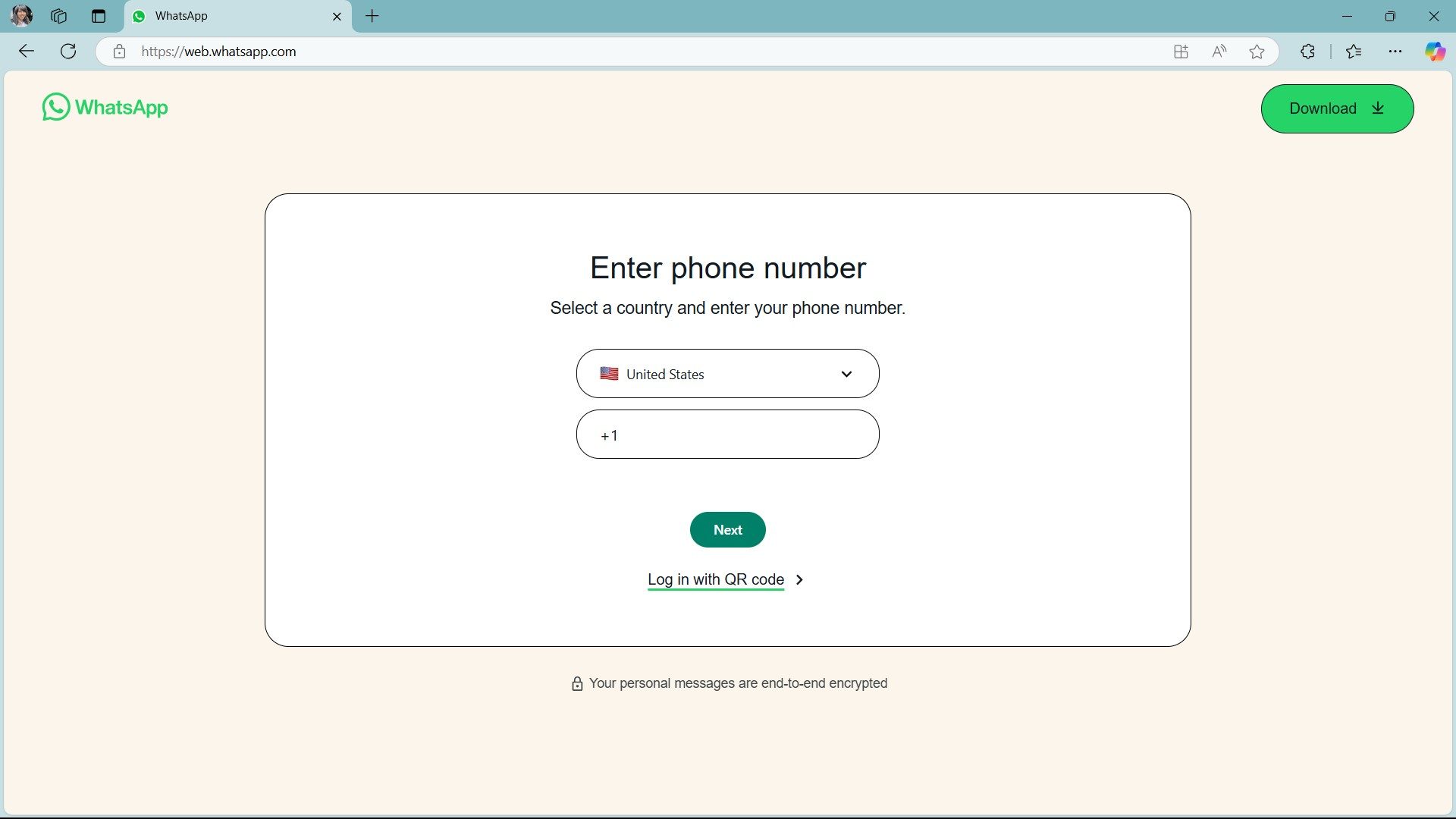
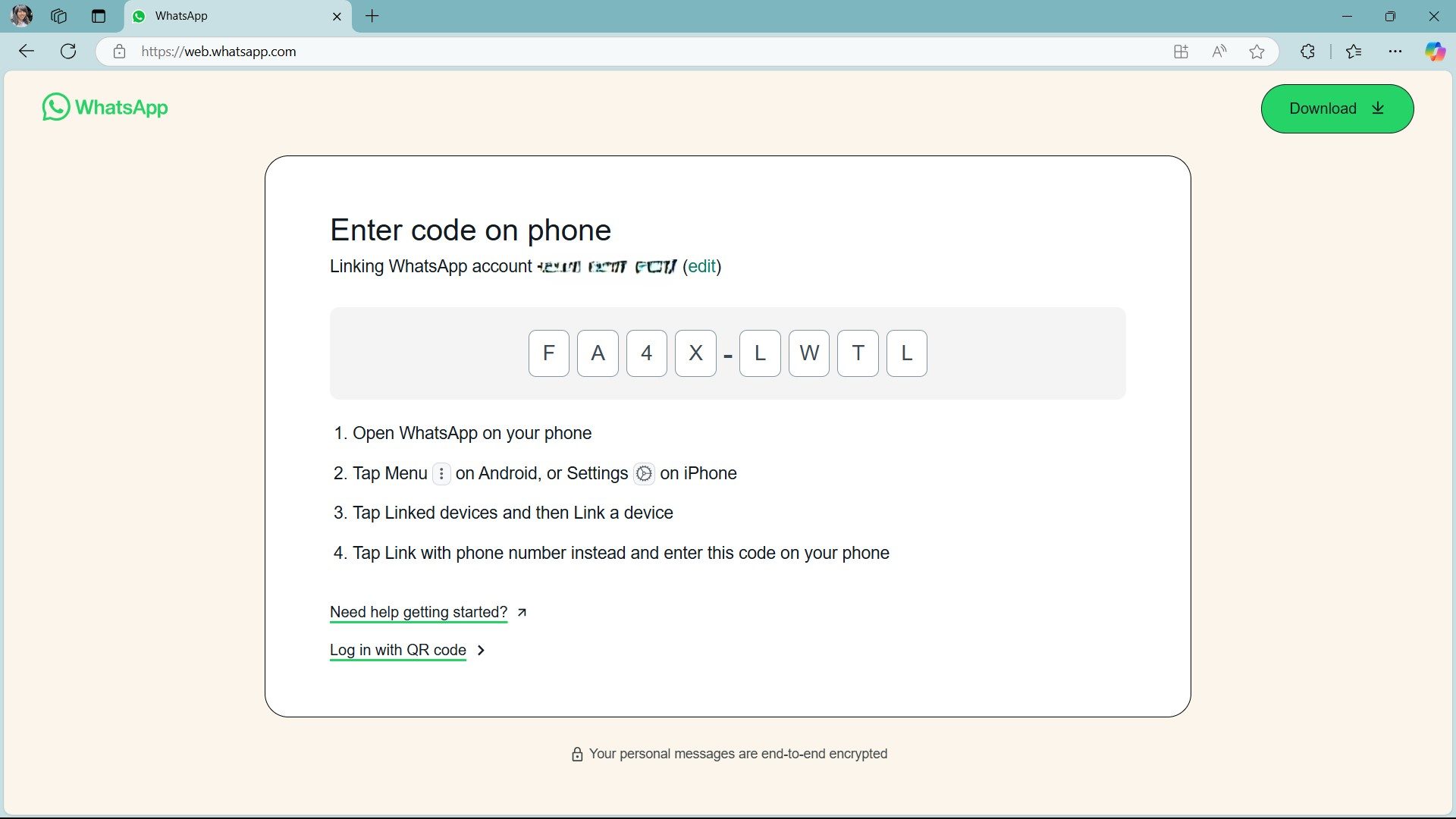
Method 2: Phone Number Authentication
For users who may have a broken camera or prefer not to use a QR scanner, Meta introduced a secondary login method. By selecting "Link with phone number," users can enter their mobile digits into the browser. The system then generates an eight-digit alphanumeric code, which the user manually inputs into the WhatsApp application on their smartphone to authorize the link.

Security Implications: Protecting Your Digital Workspace
One of the most common concerns regarding browser-based messaging is the risk of "open-browser" access—where an unauthorized person gains access to your computer and views your private chats.
Meta has addressed this with the implementation of App Lock for Web. This feature allows users to set a unique, local password that encrypts the browser interface. If the user steps away from their desk, the app can be configured to lock automatically after a period of inactivity. This is a crucial security layer that ensures that even if a computer is left unlocked, private communication remains obscured behind a password wall.
Feature Breakdown: Beyond Simple Texting
WhatsApp Web is no longer a stripped-down version of the app. It now supports:
- Media Handling: Seamless drag-and-drop support for images and documents.
- Status Management: Viewing and replying to "Status" updates from your contact list.
- Comprehensive Settings: Modifying notifications, managing archived chats, and controlling privacy settings—all without touching the smartphone.
- Advanced Formatting: Full support for bold, italic, and strikethrough text, alongside emoji and sticker integration.
Implications for Future Connectivity
The shift toward a desktop-centric WhatsApp experience signals a broader strategic pivot by Meta. By reducing the friction between mobile and desktop, they are positioning WhatsApp not just as a casual messaging tool, but as a legitimate contender in the enterprise communication space.
As the platform continues to iterate, we are likely to see even deeper integration with business tools, potentially allowing for more robust CRM (Customer Relationship Management) hooks, better file versioning, and increased cross-platform security protocols.
For the average user, the takeaway is clear: the smartphone is no longer the sole gatekeeper of your conversations. By mastering the desktop interface, you can reclaim your workflow, eliminate unnecessary device switching, and maintain a secure, professional communication hub right from your browser. Whether you are a student managing group chats or a professional coordinating complex logistics, WhatsApp Web provides the necessary tools to keep your digital life organized and accessible, all while maintaining the high standard of encryption that users have come to expect.

Frequently Asked Questions (FAQ)
Q: Do I need my phone to be on the same Wi-Fi network as my computer?
A: No. Once the initial link is established, the browser session is independent. You can even use your computer in a different city or country while your phone remains at home.
Q: Is the App Lock password the same as my phone lock?
A: No. The App Lock password on WhatsApp Web is specific to that browser session and is not shared with your smartphone or other linked devices.
Q: Can I log out of WhatsApp Web remotely?
A: Yes. If you suspect you left your session open on a public computer, you can go to "Linked devices" on your mobile app and force a logout from any specific browser session.
Q: Does WhatsApp Web support voice and video calls?
A: Yes, provided your computer has a working microphone and camera, you can initiate and receive calls directly through the browser, making it a complete replacement for the mobile app during work hours.

By embracing these tools, users are not just changing how they message; they are evolving how they interact with their digital ecosystem. As communication continues to migrate toward integrated, multi-platform environments, WhatsApp Web stands as a testament to the necessity of seamless, secure, and accessible technology.


 Lina Hope
 Jia Lissa